
Every now and then, your browser saves bits of websites so loading becomes quicker. When you visit sites regularly, those saved pieces might grow without stopping. Clearing what’s stored won’t harm your device but can resolve issues like slow startup or old versions showing up. Sometimes, just wiping the cache makes everything work better again. Here are eight basic methods to share them simply.
Clear Cache From Browser Settings
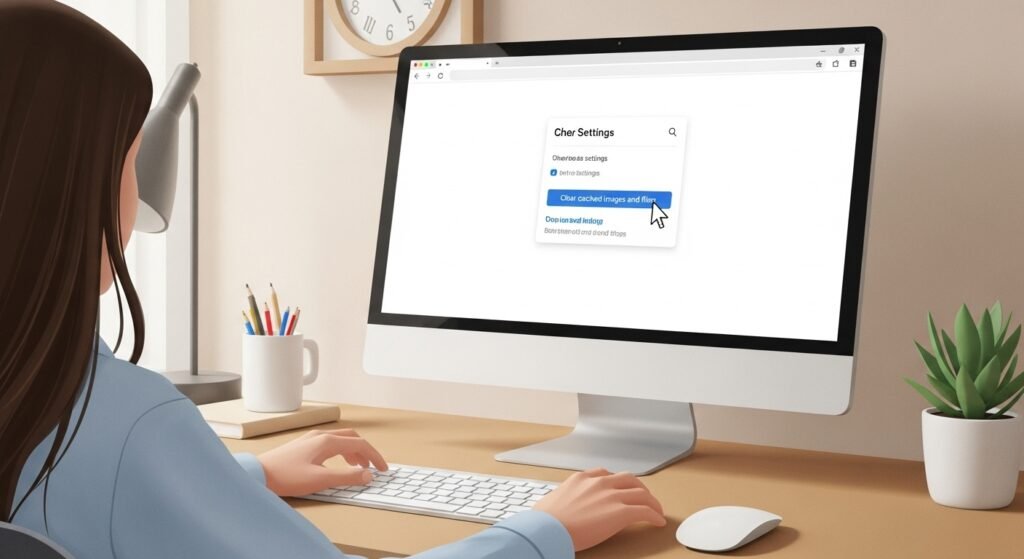
Start by opening what shows up when you type in “Privacy” or “History” inside your browser. Find the part where it says you can wipe out saved info. Pick the one labeled “cached images and files.” That move clears out stuff websites keep after you visit them – nothing else gets erased, like your logins or links you saved.
Use Keyboard Shortcuts

Right now, many web browsers make it faster to clear data. Instead of hunting through menus, try pressing Ctrl + Shift + Delete on Windows. If you’re using a Mac, it’s Command + Shift + Delete. Each version works well – straight to the part where you manage stored pieces. Saving effort here means less waiting later.
Do it for a Specific Website

When a webpage takes too long to load or appears messed up, there is no reason to wipe out all browser info. Start by visiting the slow site, then head into your browser options – from there, remove storage linked only to that one webpage. Everything else stays intact.
Restart the Browser

Once the cache is cleared, shut the browser and then open it again. Starting fresh like this allows updates to take effect correctly while blocking any stuck information still running inside the system.
Use Incognito Mode

What happens in private mode differs when it comes to cached data. Using a webpage here can show whether saved information is part of the problem. Better performance may indicate old cache is slowing things down. Clearing that memory follows naturally under those conditions.
Clear on Mobile Browsers

On a phone, the browser holds cached information too. Open settings from the mobile browser – look for privacy or storage choices – then remove stored cache. Doing so might speed things up while solving problems with pages that fail to load.
Limit Cache Development

Every now and then, clearing cache helps things move faster. Daily isn’t required – once a month works fine. If issues pop up, that’s when it matters more. Staying on top like this keeps your browser feeling light and ready.
Update Your Browser

Sometimes newer browsers manage memory better than older ones. Upgrading cuts down on slow loading and related problems, all while automating housekeeping tasks.
