
The rise of the digital world in our daily activities has made it easier for fraudsters to disguise themselves as trustworthy companies, particularly with well-known brands such as Microsoft. The majority of email users belonging to the older age group are, in general, more susceptible to the scams as they are using email for all kinds of activities, like communication, transfers, information gathering, and so on. A fake login page of Microsoft could be very similar to the original one, and moreover, clicking it once could result in disclosing your password without you being aware of it. Here’s a rundown of what you should know about this tap and how to prevent getting trapped.
How the Trap Usually Starts
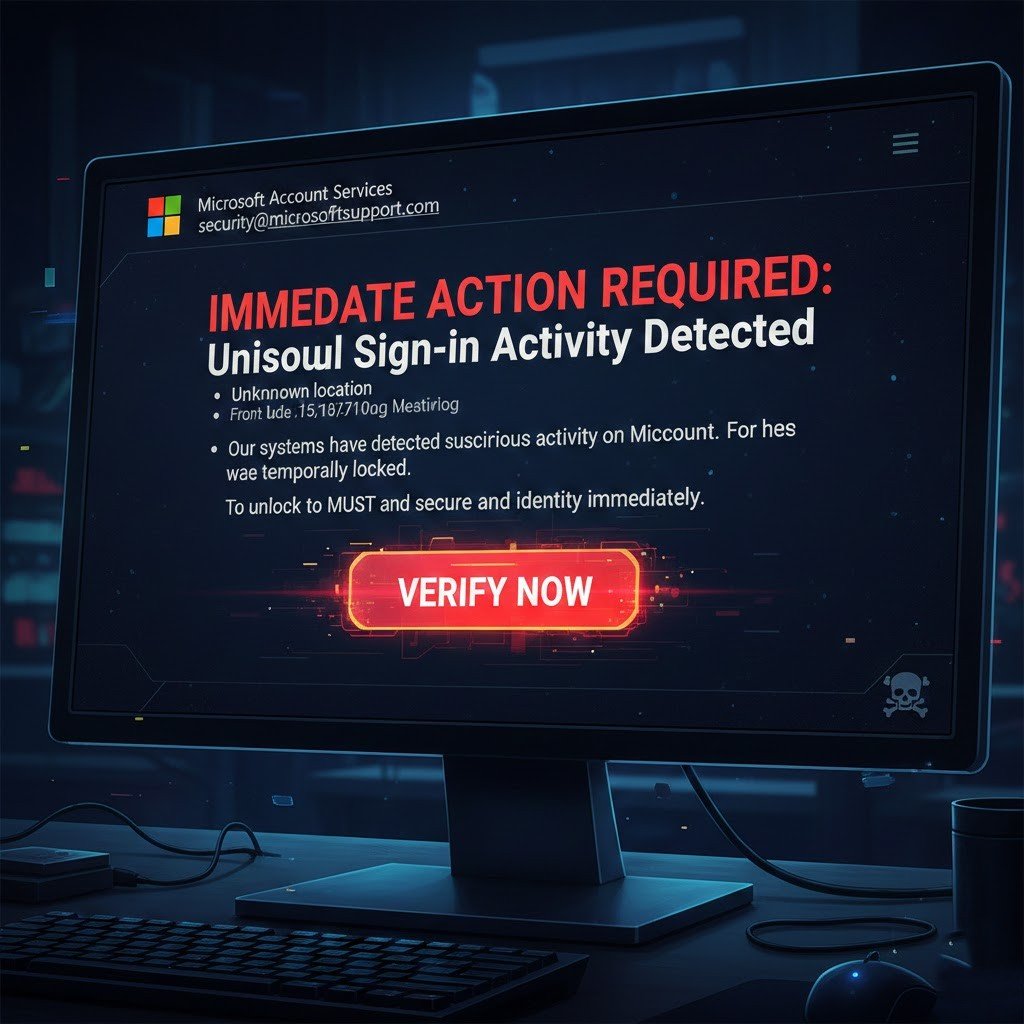
It usually starts with a phishing email impersonating Microsoft. Usually, the trap messages such as “Suspicious login detected” or “Your subscription needs renewal” are common things. The sender seems authentic, there is a great panic (“Act fast or you will lose access!”), and a convenient link is provided to “solve” the problem instantly.
Related : When She Finally Realized Her Partner Was Sleeping With Someone Else
The Fake Page Looks Scarily Real
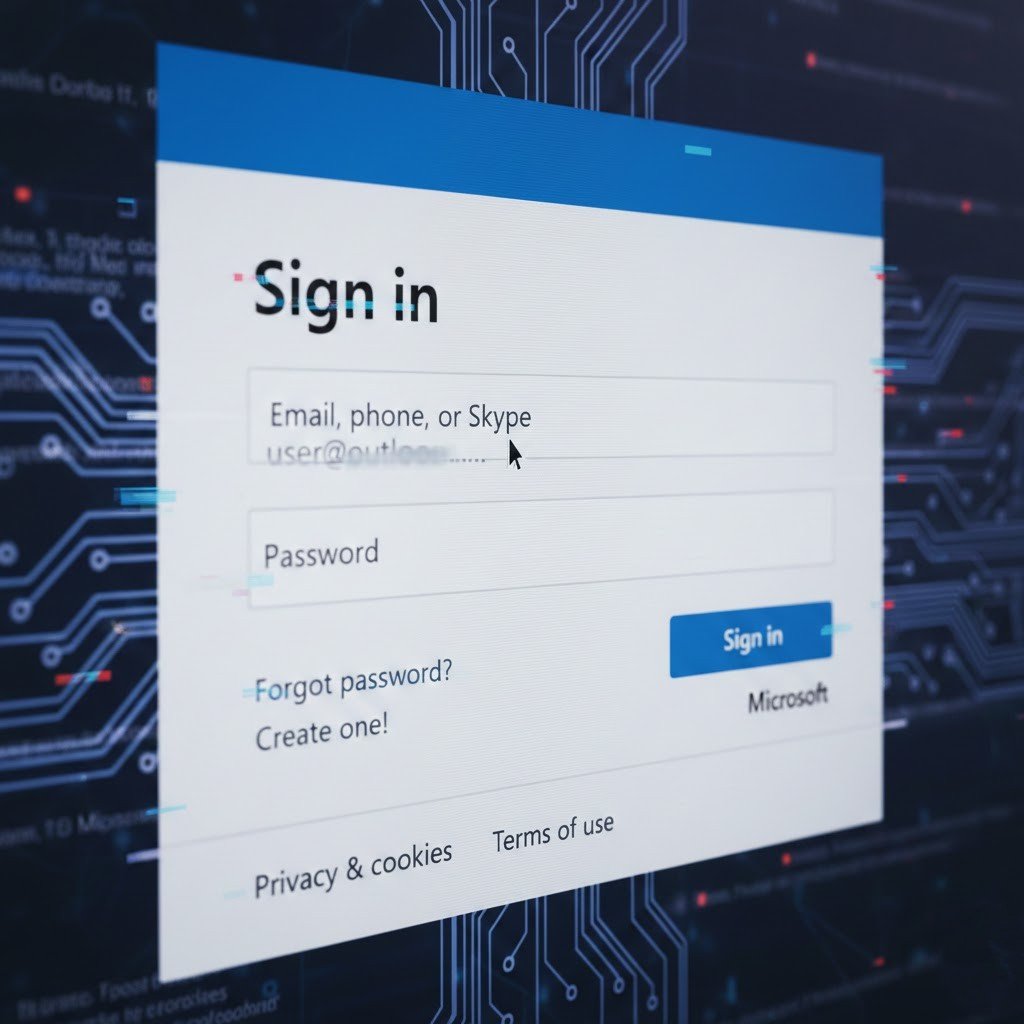
These pages copy Microsoft’s design perfectly with logo, colors, layout and everything. Some even use advanced kits like Quantum Route Redirect or Sneaky 2FA to mimic everything, including pop-ups. You type your credentials, and poof, then they’re stolen in an instant without you noticing.
Typosquatting Tricks Your Eyes
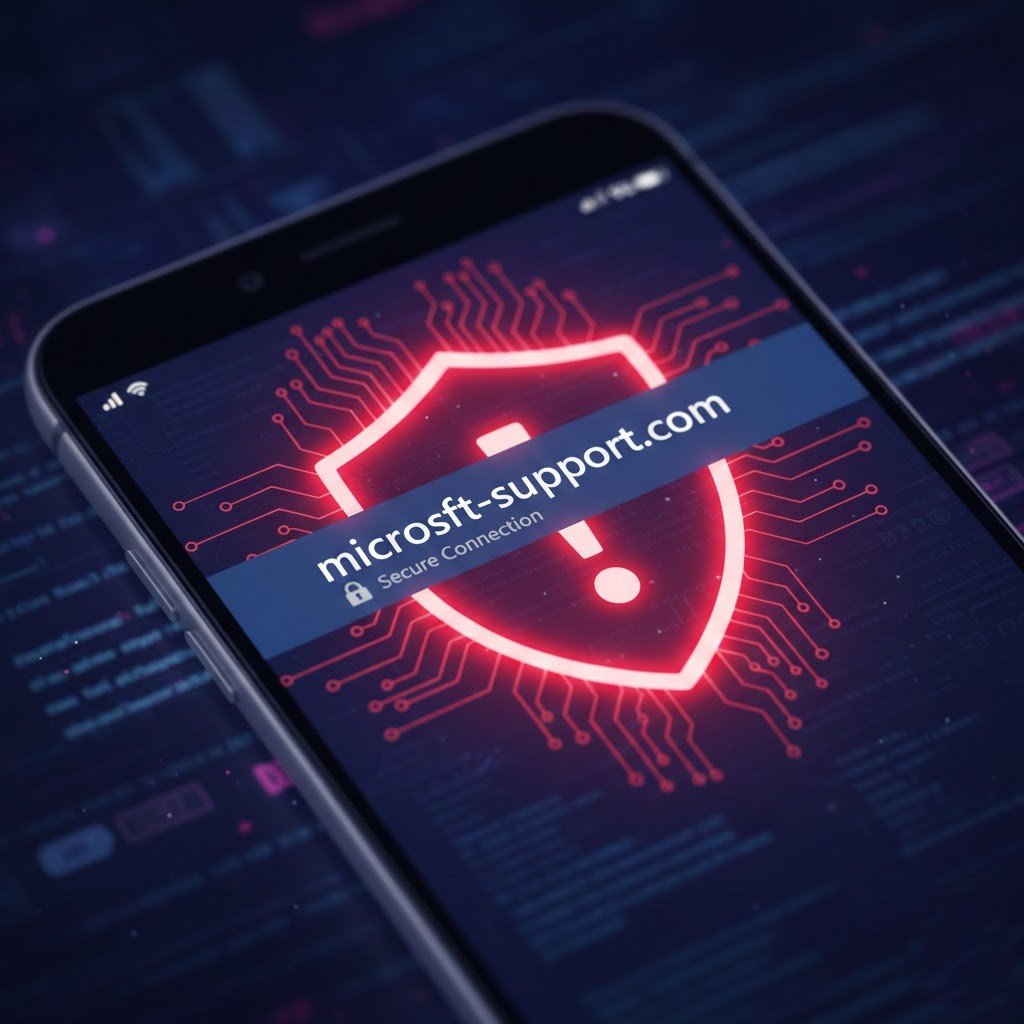
Scammers register domains like “rnicrosoft.com” (where “rn” looks like “m”) or slight misspellings. On a phone screen, it’s easy to miss. The email passes filters because it might use legit-looking senders or compromised accounts.
Related : When She Finally Realized Her Partner Was Sleeping With Someone Else
Urgency Pushes You to Click Fast

Classic move: Threats like “Account suspension in 24 hours” or “Security breach, verify now.” This panic mode makes you skip checking details, rushing straight to entering your password on the fake site.
CAPTCHA or Extra Steps Build Trust
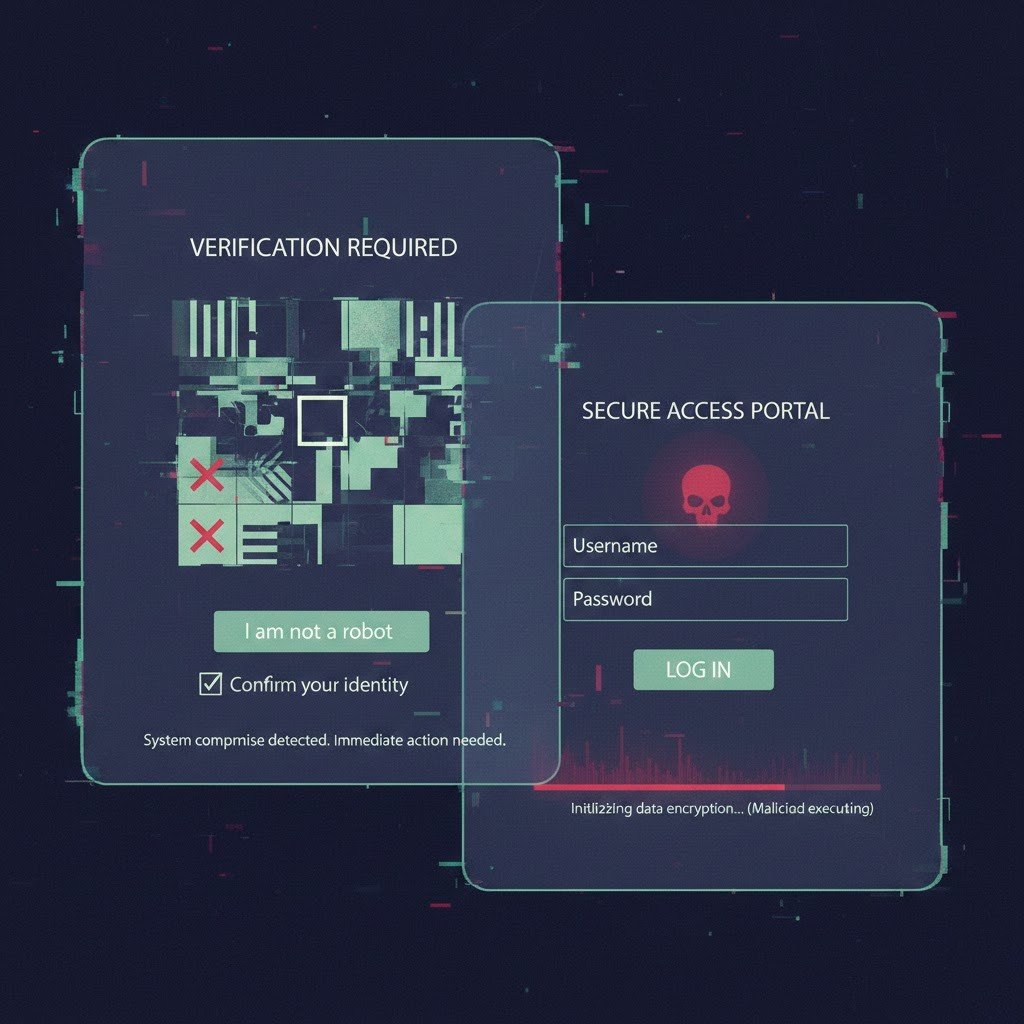
Some traps throw in a fake CAPTCHA (“Prove you’re not a robot”) or redirect through legit sites like Google Docs first. It feels safe, lowers your guard, and then hits you with the phony login.
Device Code or OAuth Twists
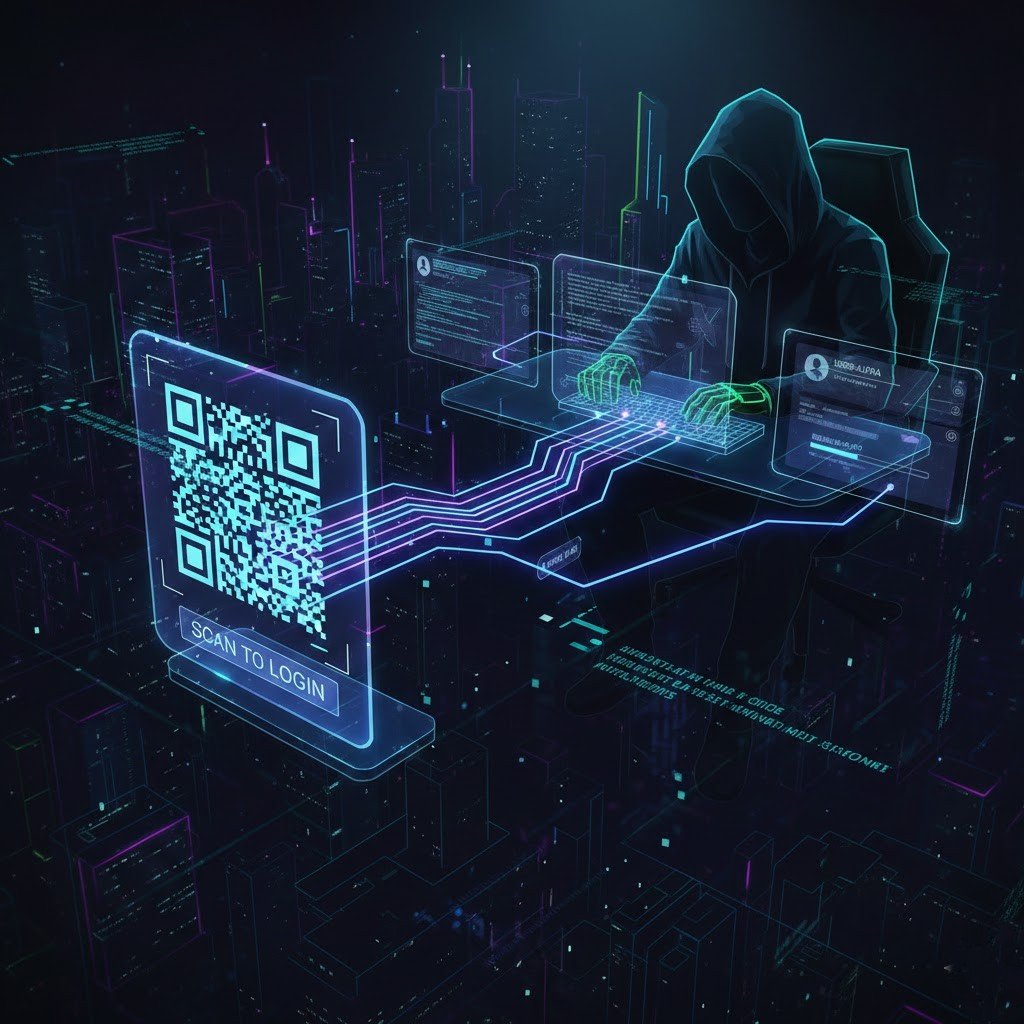
Newer ones ask you to enter a code on the real Microsoft site, unknowingly granting app access. Or they use QR codes in emails for “easy login” scanning approves scammer access without passwords.
Related : When She Finally Realized Her Partner Was Sleeping With Someone Else
What Happens If You Fall For It

Your credentials go straight to the bad guys. They log in (sometimes bypassing basic MFA), change settings, steal data, send more scams from your account, or drain linked finances. Quick and nasty.
Hover and Check the URL Always
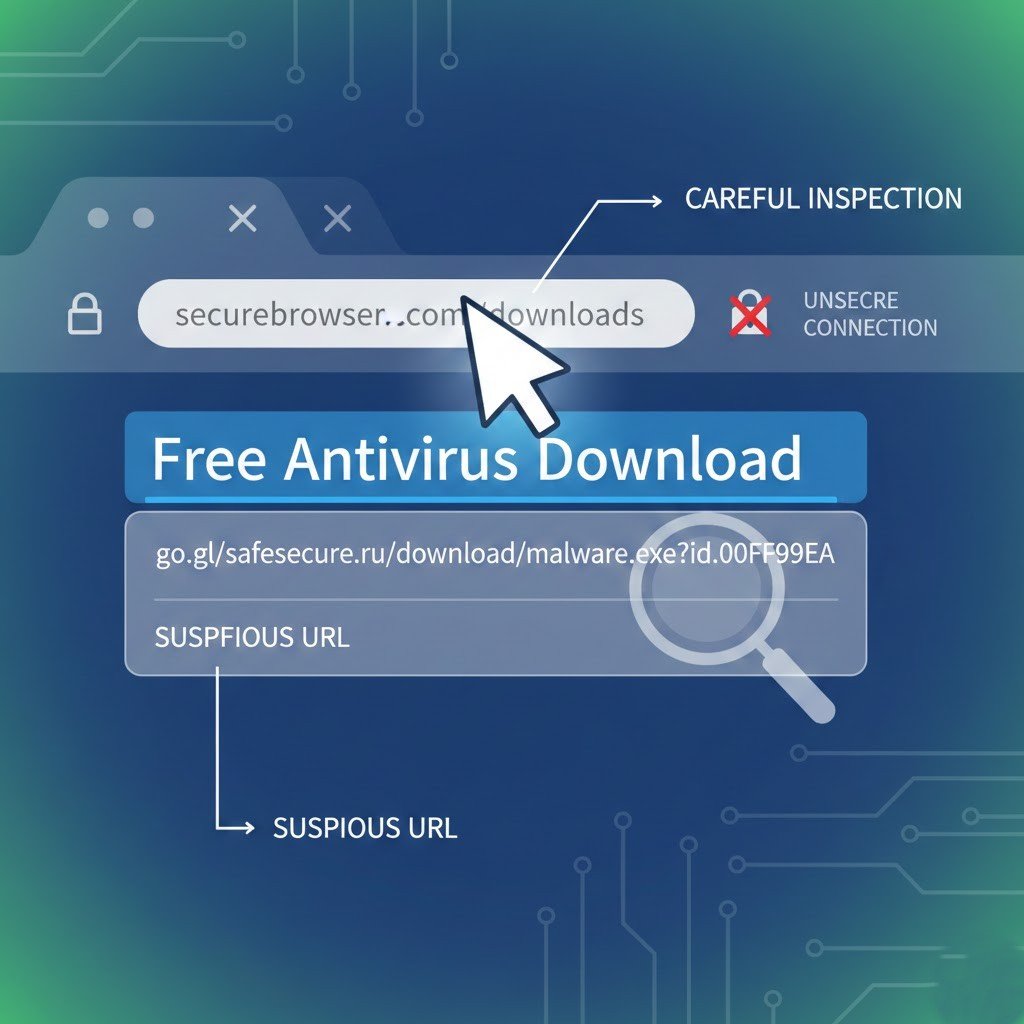
Before clicking, hover over links to see the real destination. Legit Microsoft logins are on domains like login.microsoft.com or microsoftonline.com, nothing weird before or after. On mobile, long-press to preview.
Go Direct and Use Bookmarks
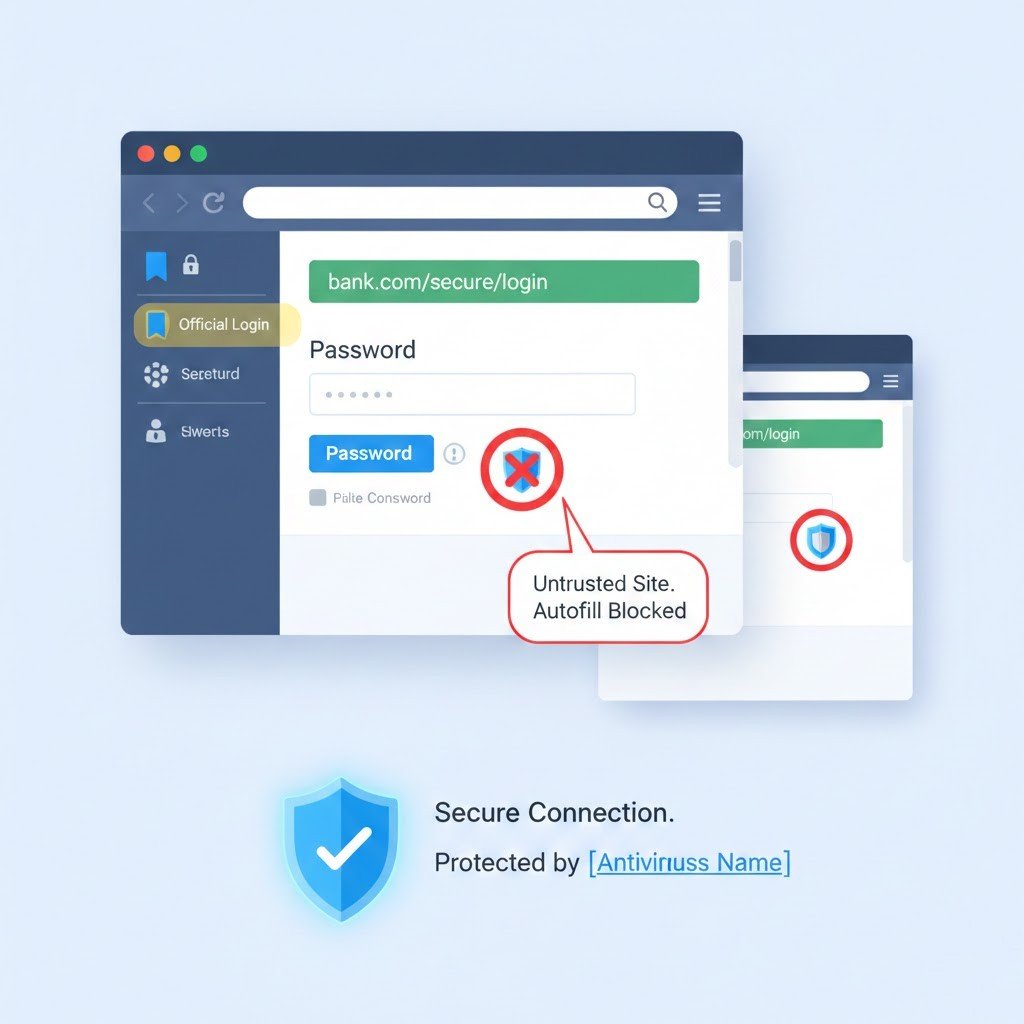
Never click email links for logins. Type login.microsoft.com yourself or use saved bookmarks/password managers. Managers won’t auto-fill on fakes, giving you a big red flag.
Layer Up Your Defenses

It is advised to use MFA that is phishing-resistant (like hardware keys or passkeys rather than SMS) should be enabled. A powerful antivirus should be used that detects phishing, suspicious emails should be reported to phish@office365.microsoft.com, and unsolicited alerts should be treated with skepticism.
