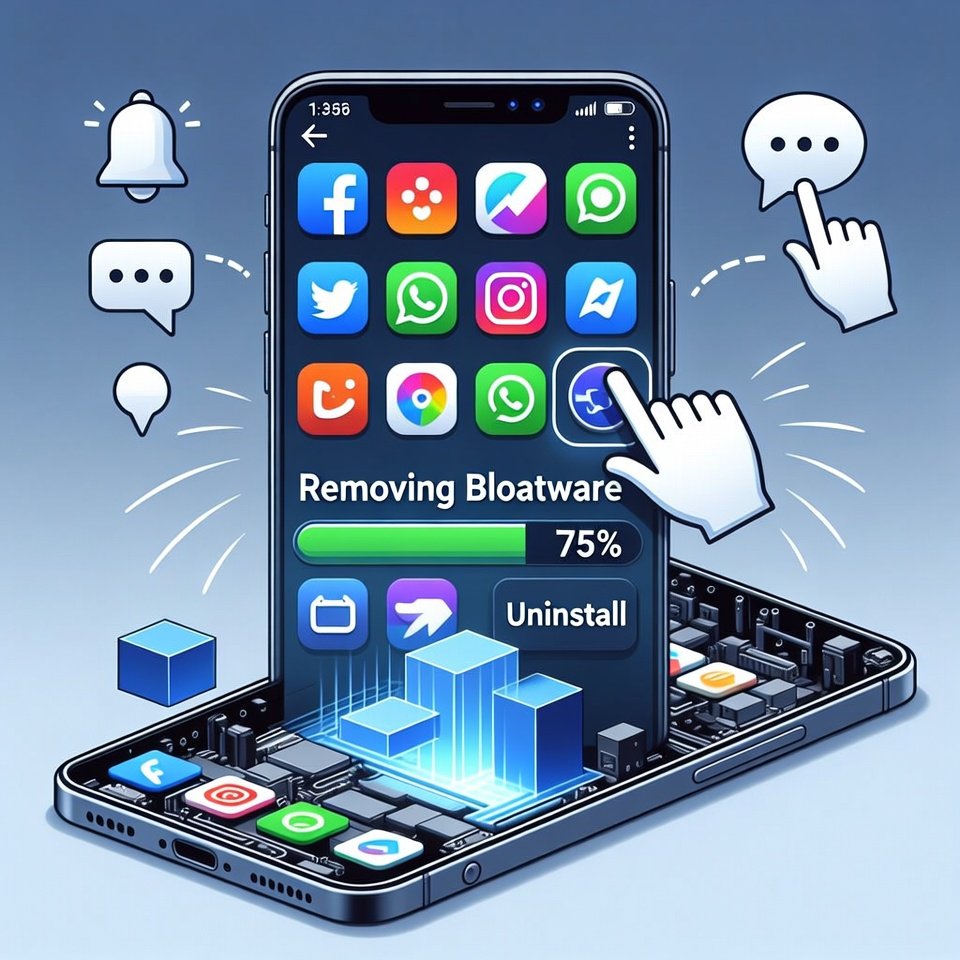
Bloatware refers to apps that come pre-installed on Android phones and these apps often go unused. These apps take up storage and might slow performance of the device. They may sometimes send notifications you don’t need. In some devices, these apps stay for permanent use while some can be fully deleted. This means many apps can be removed to free up storage and performance alike. These steps explain simple and safe ways to clean your phone and make it feel lighter and faster.
Uninstall What Android Allows
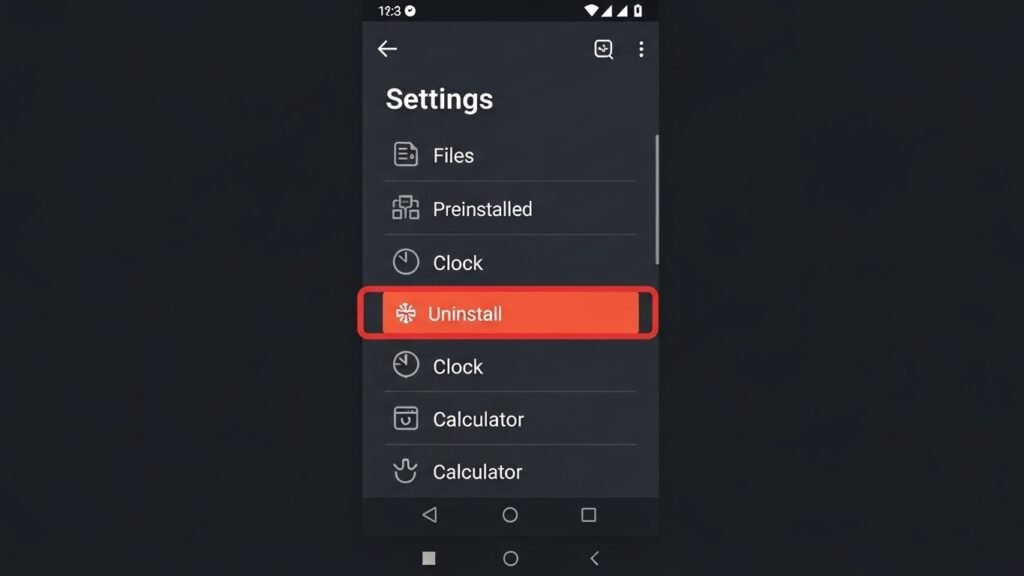
The Android system doesn’t allow uninstallation of every application which means there’s bloatware apps present. Try to check these applications for the uninstallation option. This completely deletes the app and frees storage.
Disable Apps That Can’t Be Deleted

Many system apps can’t be uninstalled but can be disabled. Disabling stops the app from running, updating, or sending notifications. Go to the app’s page and tap Disable. This keeps the app out of sight and prevents it from slowing the phone.
Remove App Permissions
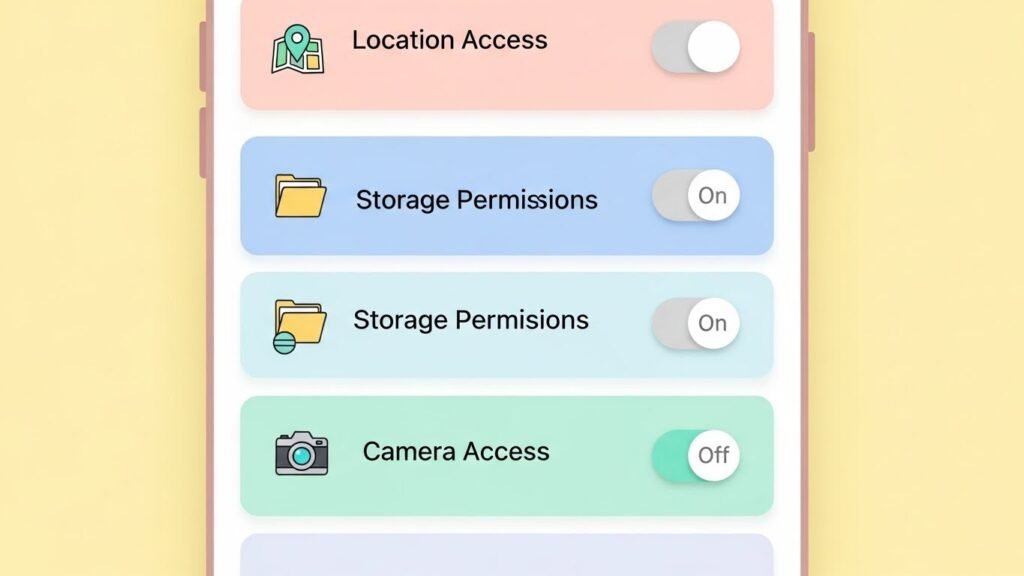
If an app can’t be removed or disabled, limit what it can access. Turn off permissions like location, storage, or background data. This reduces tracking and resource use. Go to Settings > Privacy > Permission Manager and review carefully.
Turn Off Notifications From Bloatware

Unwanted apps often send alerts. These notifications waste attention and battery. Open the app’s settings and turn off notifications. This keeps the phone quieter and more focused, even if the app stays installed.
Stop Background Activity
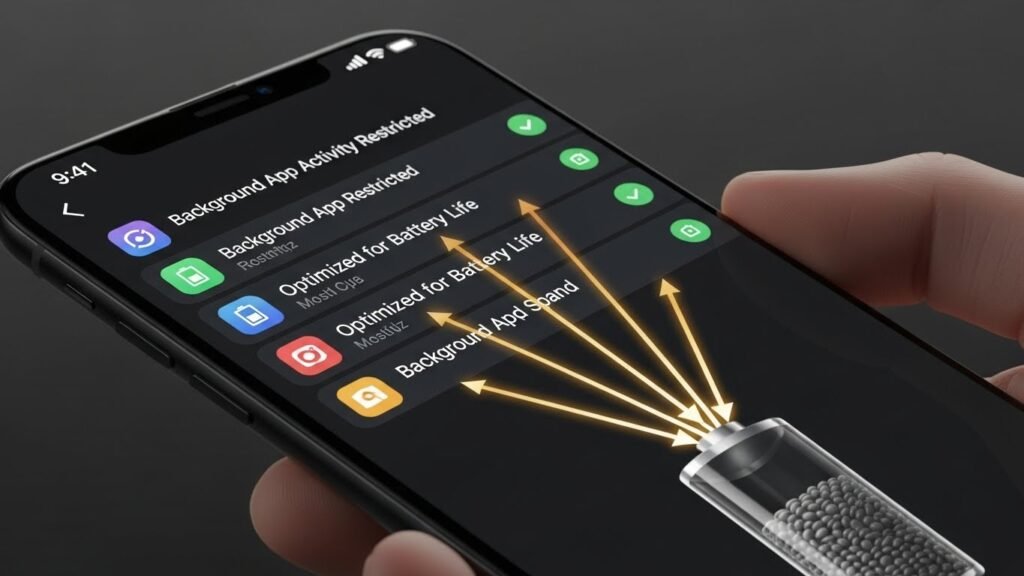
Some bloatware runs silently in the background. Restrict background usage by going to Battery > App usage. Limiting background activity helps improve battery life and overall speed, especially on older phones.
Uninstall Updates From System Apps
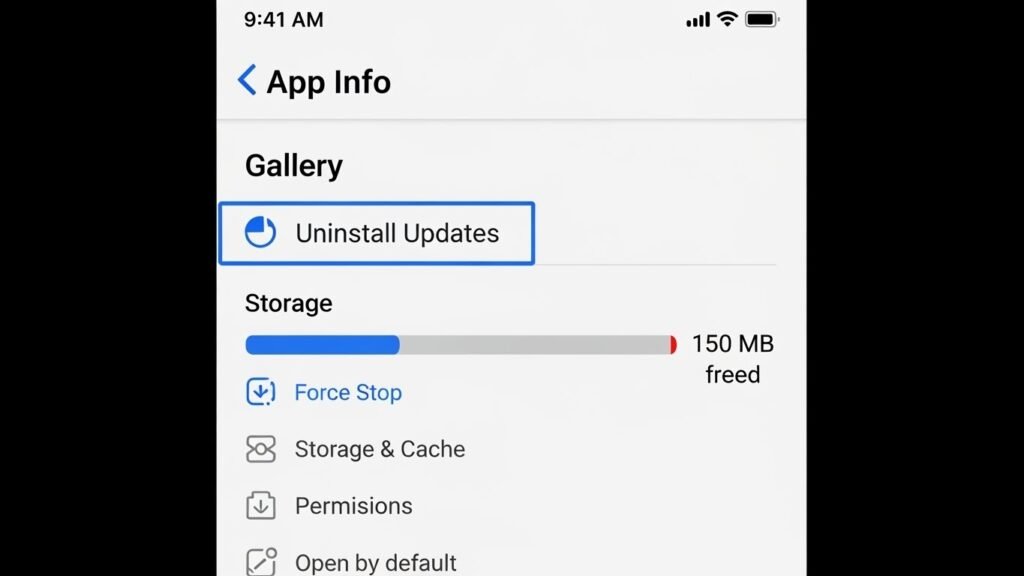
System apps often receive updates that add more features and size. You can remove updates to return them to the basic version. This saves storage and reduces activity. Open the app, tap the menu, and choose Uninstall updates if available.
Use Safe Mode to Identify Extra Apps
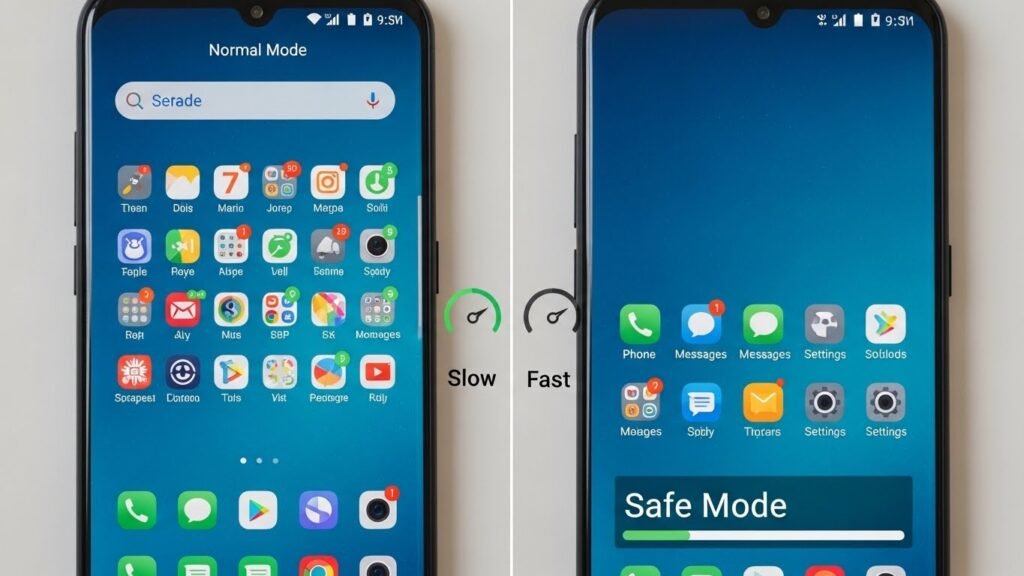
Safe mode allows running of essential system applications. You can identify potential issues for example, if your phone feels faster in safe mode, it means third-party apps are likely causing issues.
Use ADB Tools for Advanced Removal
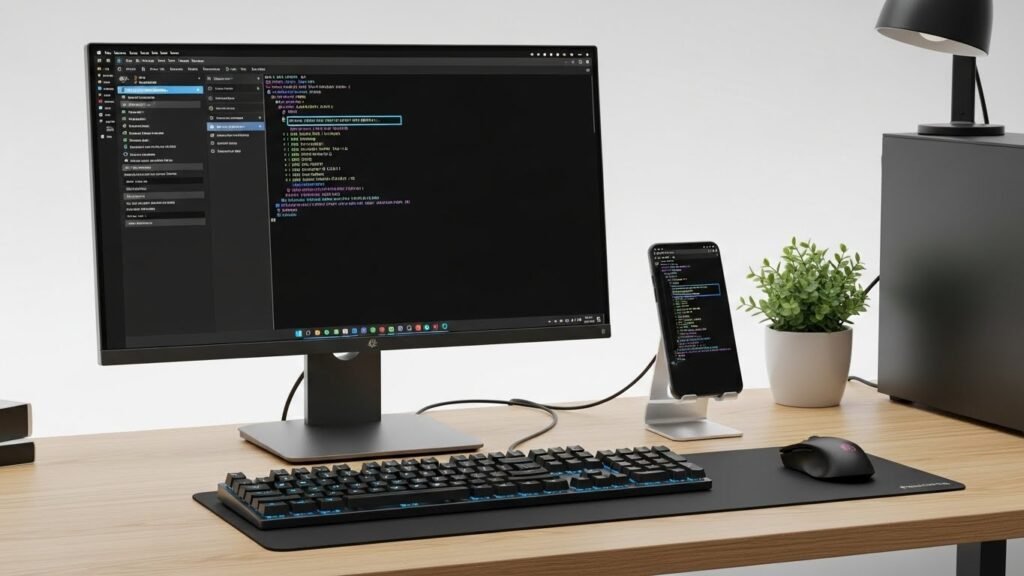
Android Debug Bridge is a tool to remove hidden bloatware by using a computer. By following instructions on the screen, it’s simple to remove these apps and doesn’t harm your device.
