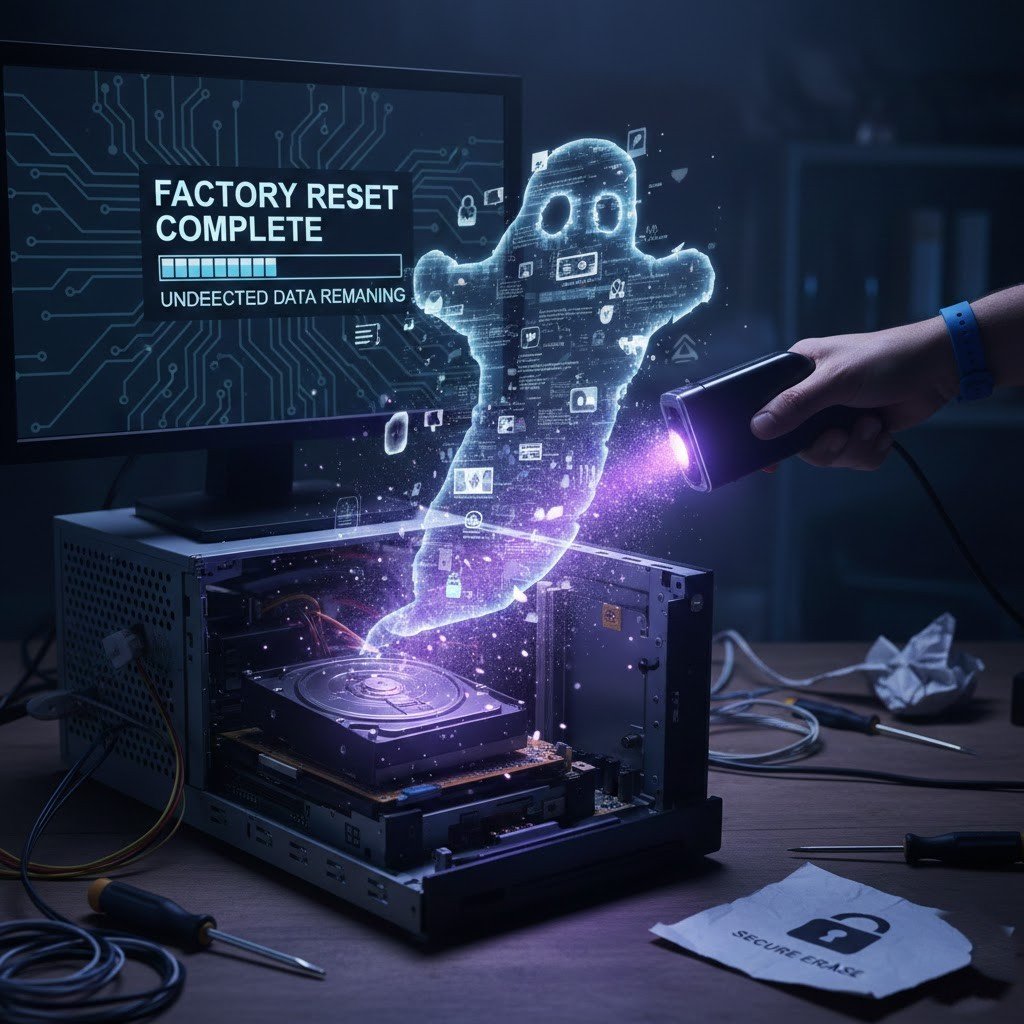
At some point, you might need to reset your old computer in order to gain a fresh start. Certainly, we think that all the information was erased from the computer. But do you think that actually happens or some information stays? The normal method of file deletion fails to completely erase files from the system. Data remains hidden and recoverable until users implement advanced methods for data protection. The steps provided here help protect personal information from unauthorized access when you prepare an old computer for sale or donation or recycling.
Back Up What You Still Need

Yes, it is important to back up in advance so you don’t get regret later. Before erasing anything, save important files on device or online. Photos, documents, and passwords often get forgotten. A backup prevents regret later and lets you erase data without worry.
Sign Out of All Accounts

Log out of email, browsers, cloud services, and apps. Some accounts stay connected even after file deletion. Signing out helps disconnect personal data from the system before deeper cleanup.
Remove Saved Browsers and Passwords
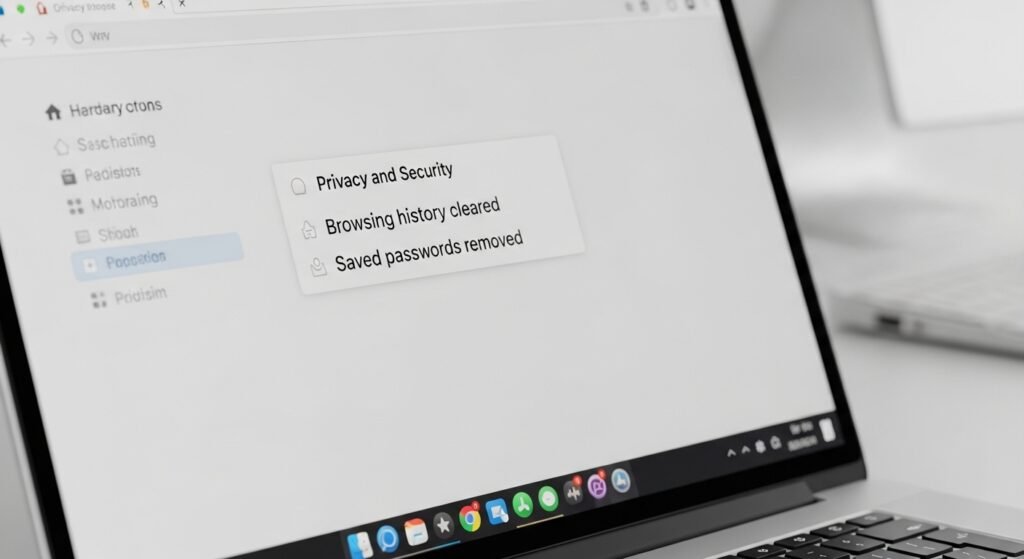
Browsers store history, cookies, and saved logins. Clearing browsing data removes traces of websites and accounts. This step matters because browser data often stays behind even after files disappear.
Encrypt the Drive First

Drive encryption scrambles data into unreadable form. Turning encryption on before erasing adds another layer of protection. Even if small data pieces remain, they appear unreadable.
Use a Full Disk Wipe Tool
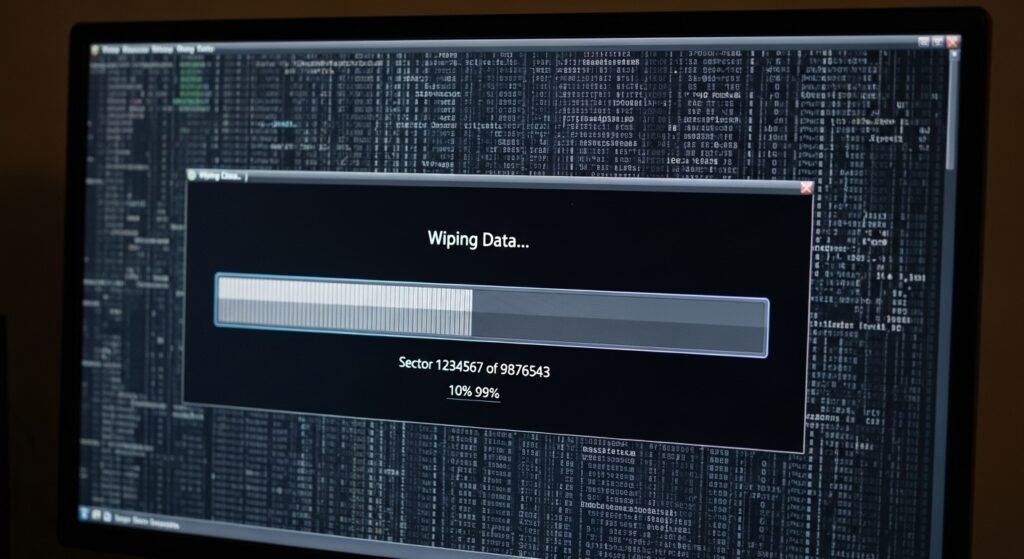
A disk wipe tool overwrites old data instead of just removing file names. This reduces recovery chances. Built-in tools and trusted software handle this more thoroughly than standard delete actions.
Choose “Erase All Data,” Not “Quick Reset”
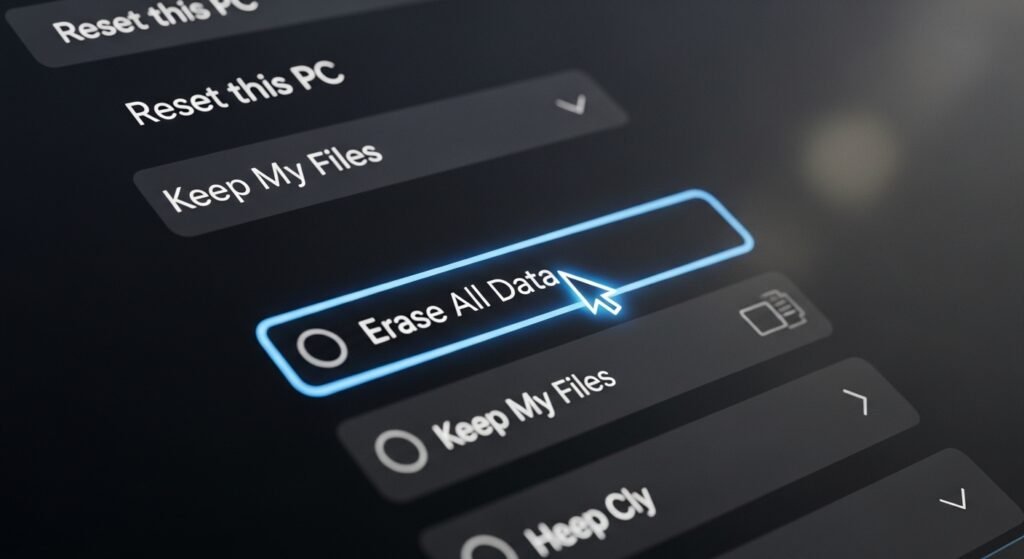
Some reset options only remove access, not the data itself. A full erase option takes longer but clears stored information more deeply across the drive.
Reinstall the Operating System
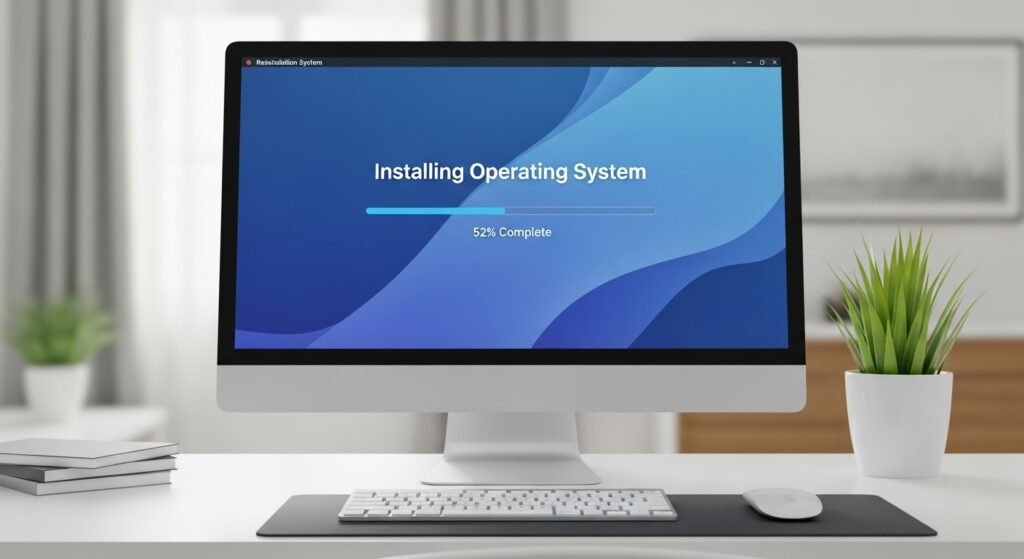
Reinstalling the system after wiping removes remaining personal settings. This leaves the computer clean and ready for a new user without old data attached.
Remove and Wipe External Storage

Old computers often include extra drives or memory cards. These hold copies of files. Removing or wiping them separately prevents accidental data exposure.
Physically Destroy the Drive

If the computer no longer matters, removing and destroying the hard drive adds certainty. This step suits broken systems or devices headed for recycling.
Double Check Everything
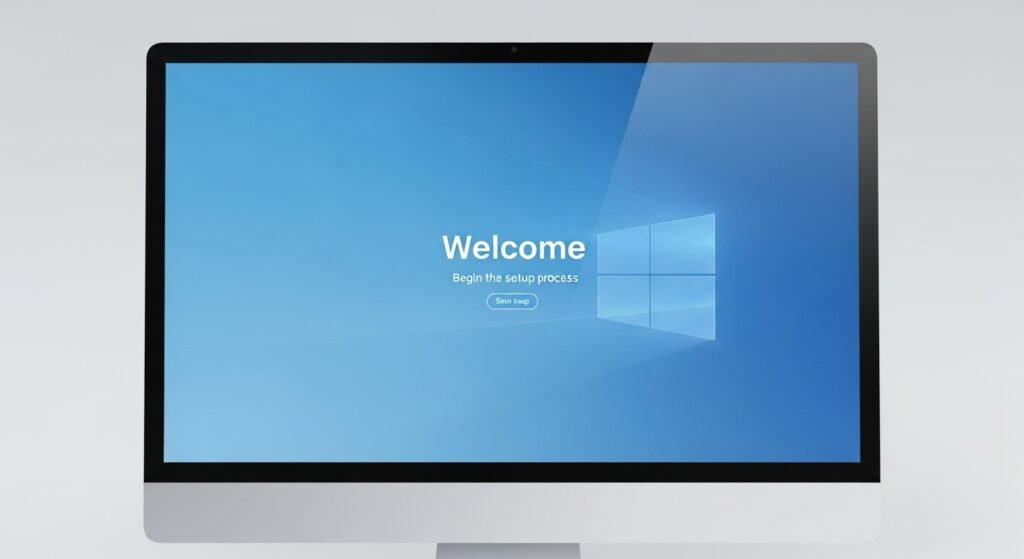
Restart the computer and explore it like a new user. It helps you collect any failpoints if noticed. For example, no files, accounts, or personal signs should appear. This final check helps catch anything missed earlier.
