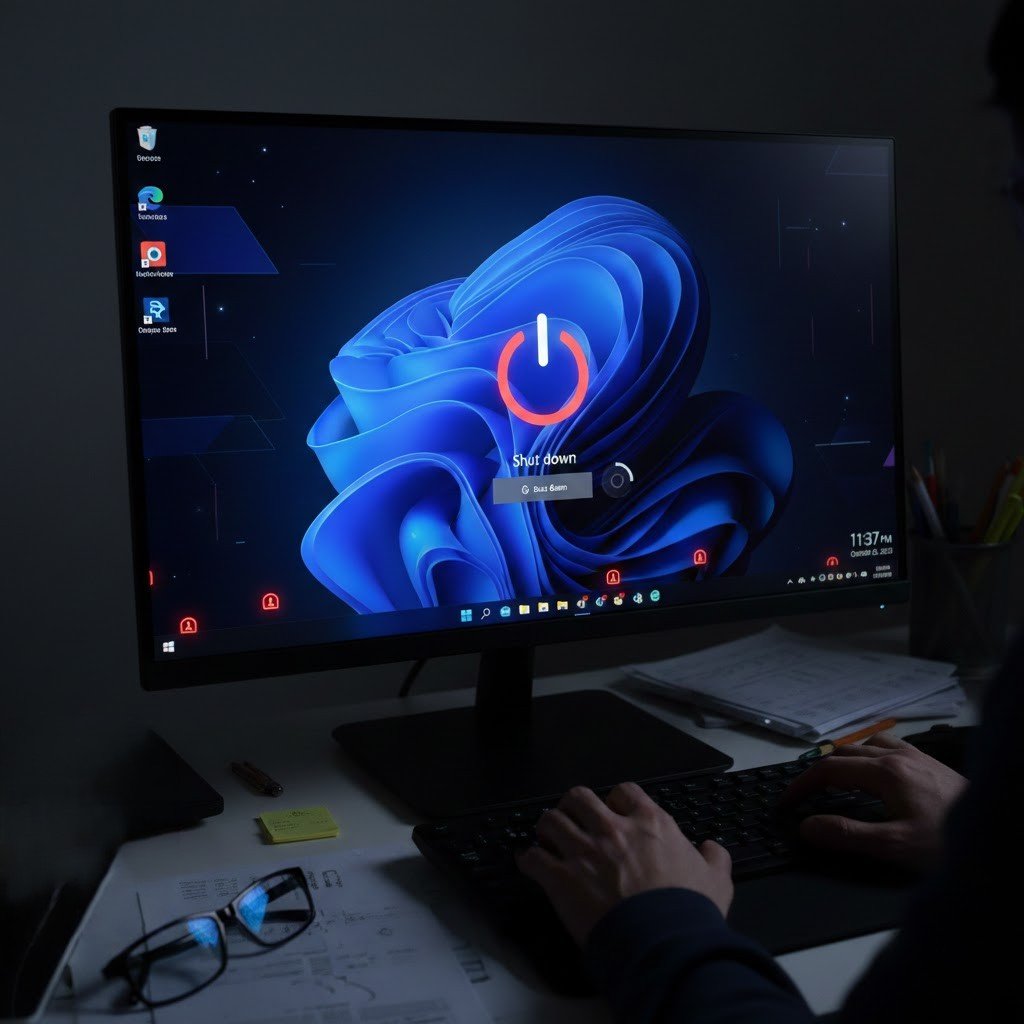
Have ever encountered a problem reflecting that Windows 11 won’t shut down anymore after the latest update? Well, it happens occasionally but it’s frustrating. This issue can be very annoying when you are trying to finish your work for the day. Well, it’s hard to identify the cause at a glance but it mostly happens due to new software installation. Here are ten points to help you understand what is happening and how to deal with it.
The New System Bug

Personal Computers have a special security feature called Secure Launch seem to have this issue the most. Instead of turning off completely the machine just starts back up again immediately. Microsoft is working on a permanent way to fix this error for all users.
Command Prompt Fix
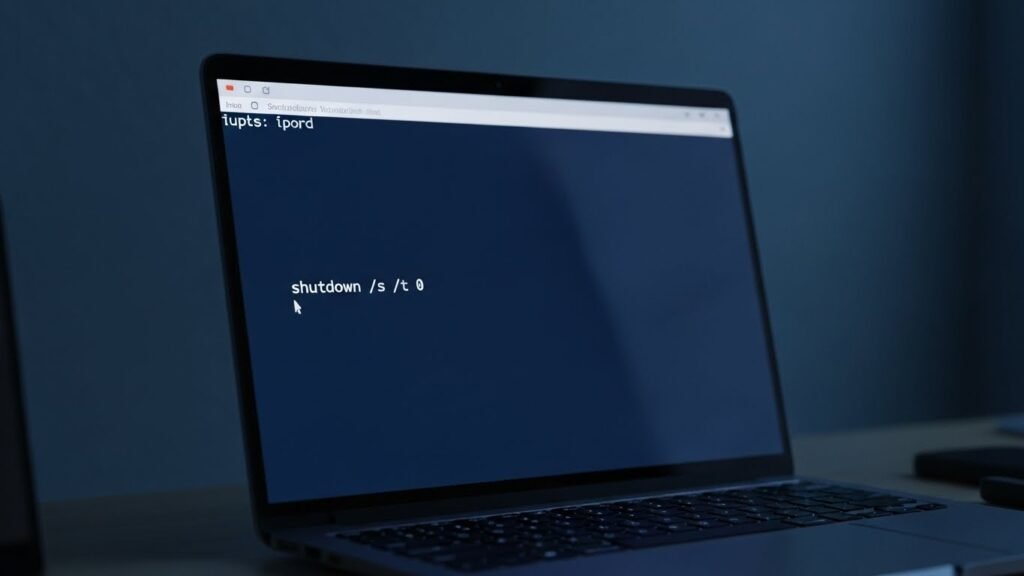
You can use a special code to force your computer to turn off when the normal button does not work. This method involves opening a window called the Command Prompt. Using this tool is a fast way to make sure the power goes out correctly while waiting for a real fix.
New Emergency Patch

You can visit the official update platform of Microsoft or use your settings on your PC to learn more about this issue. It is a good idea to install this new patch as soon as it appears on your screen. Keeping your computer up to date with these small fixes helps it run much smoother.
Fast Startup Settings
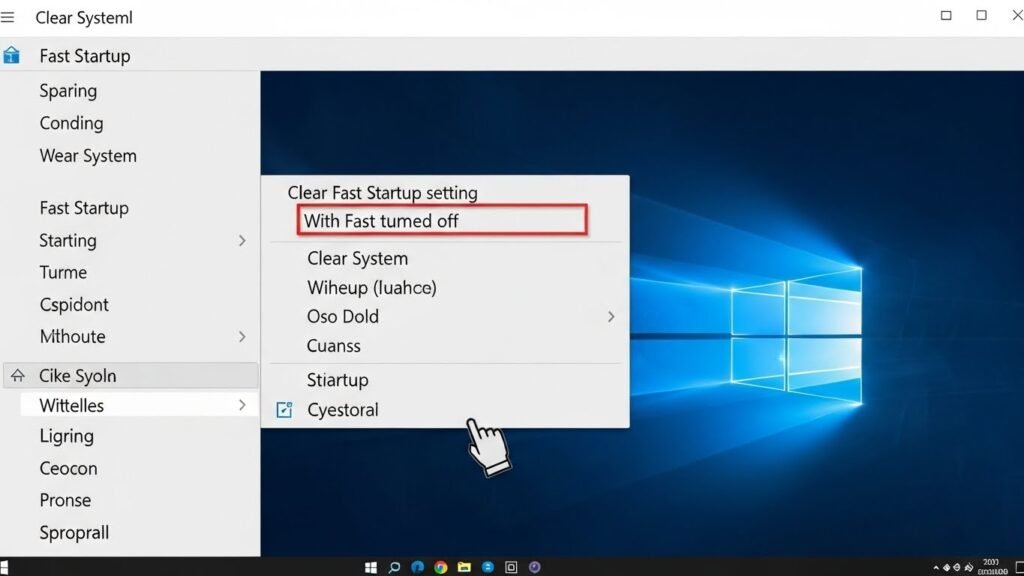
Turning off a feature called Fast Startup might help your computer shut down the right way. This feature is designed to make your PC turn on very quickly by keeping some parts of the system ready. However this setting can sometimes clash with new updates and cause power issues.
Secure Launch Feature

The problem with the latest update is linked to a security tool known as Secure Launch. This tool protects your computer while it is starting up to make sure no bad software gets inside. Only certain versions of Windows 11 use this feature so not every person will have this problem.
Power Troubleshooter Tool

Windows has a built-in helper tool that can find and fix many common battery or power problems. You can open this tool by going into the system settings and looking for the troubleshoot option. This helper will scan your computer to see if any settings are wrong or if programs are stuck.
Uninstalling the Update
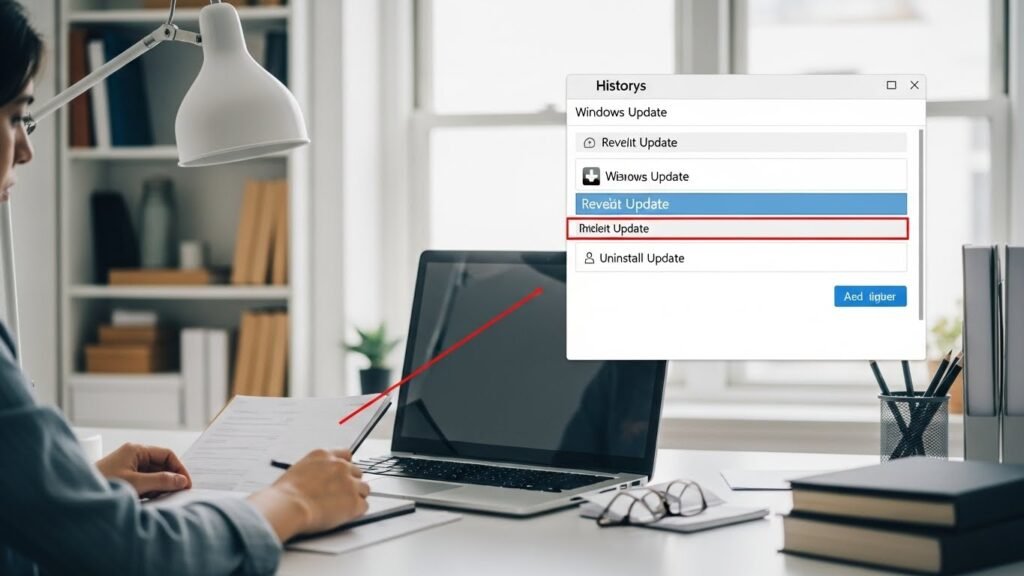
If your computer started having trouble right after the latest update you can choose to remove that specific patch. It is safe to roll back into the previous version if you’re facing this constantly. Explore the list of recent updates in your windows settings.
Checking Task Manager
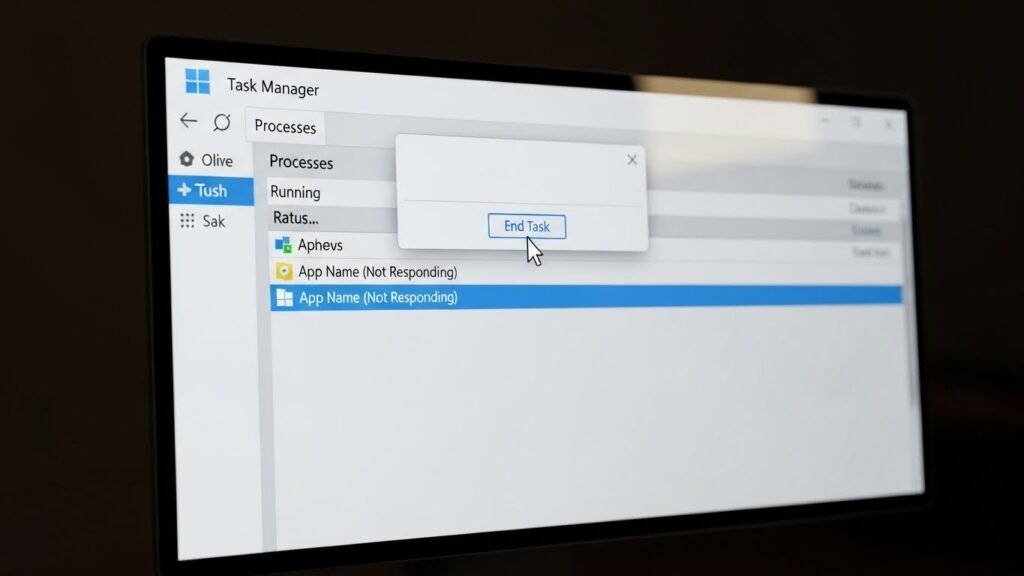
Another solution is checking the task manager to observe which app is running or stuck. For example, if you see an app that is frozen or not responding you can stop it immediately. This allows the system to continue with the shutdown process effectively.
Resetting Power Plans

Yes, you can perform resetting power plans to clean out any old settings that might be telling the PC to restart instead of stopping. Resetting these rules is a great way to make sure everything is clean and working as intended. It helps the hardware and software communicate better during the final stages of turning off.
Physical Power Button
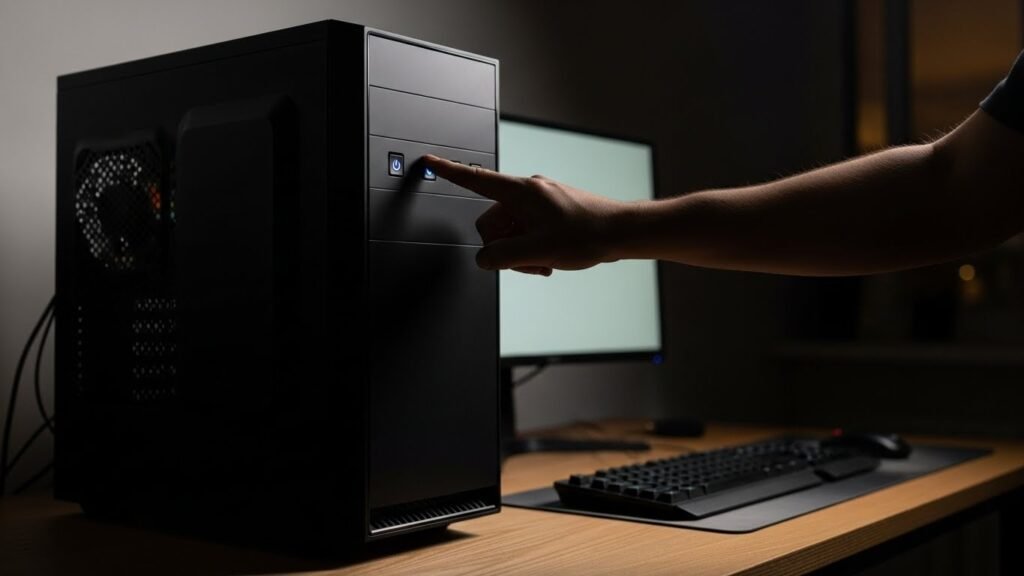
When software solutions do not work you can always use the physical button on the case of your computer. It is very important to save all your files and close your work before doing this. Forced shutdowns do not give the PC time to clean up but they will stop it from running.
