Many users have praised the interface and intuitive design of Window 11 which looks clean and modern. It features several advanced features along with some visual effects that quietly slow things down. If you have mid-range PCs or are still using older ones, probably windows 11 running slow. There are some hidden windows 11 settings that actually give your computer an instant speed boost. Here’s how it works and why it helps.
Windows 11 Uses Visual Effects
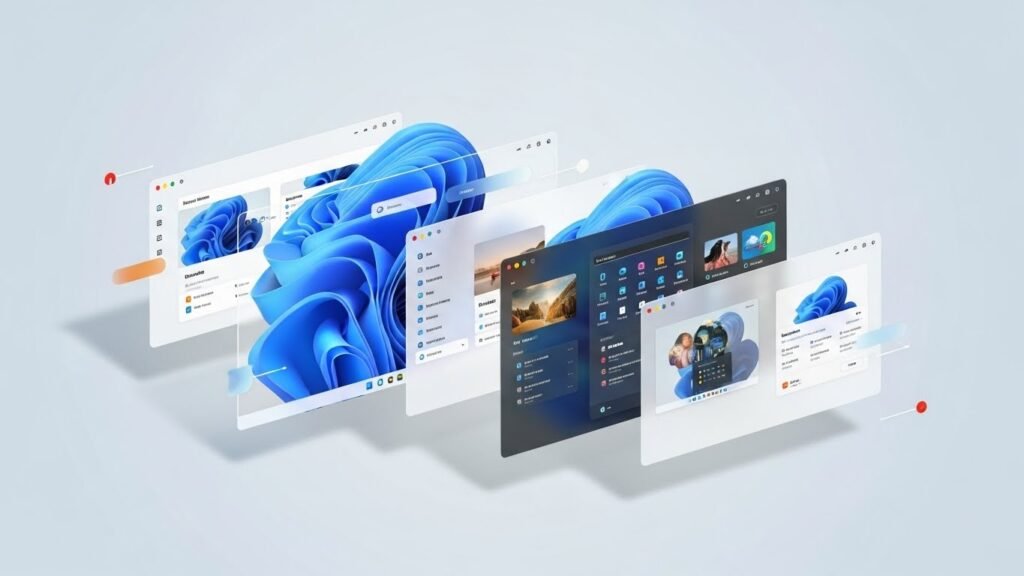
Windows 11 uses animations, shadows, and fade effects which looks nice but uses system resources. These effects run constantly and use memory and space. Older computers get slow due to high system resources in use.
Hidden in Performance Options
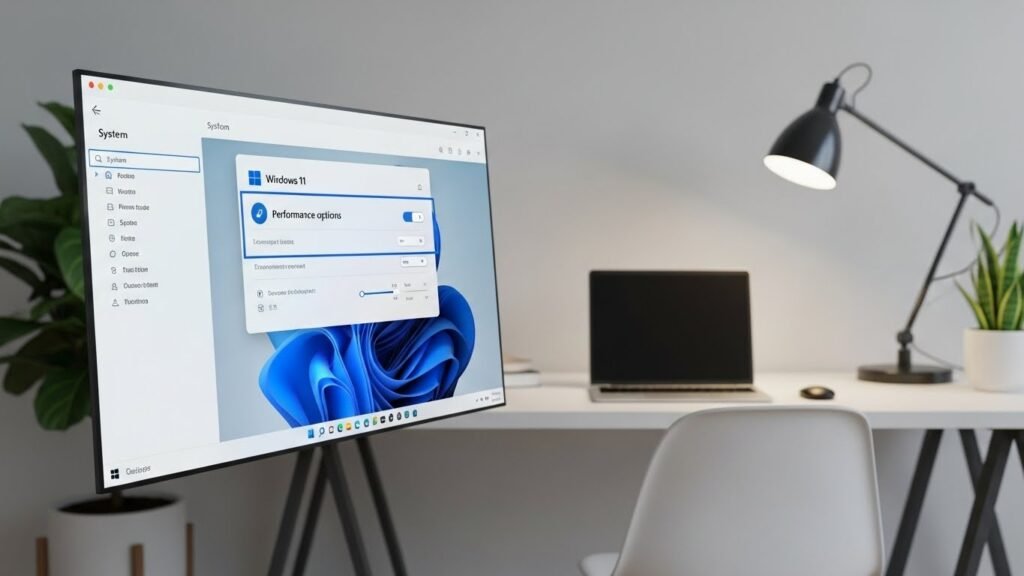
You can adjust the visual effects setting which is available in performance options. This setting controls animations like window fading, menu transitions, and shadow effects. Turning off disable visual effects and keep things simple.
Reduces System Load
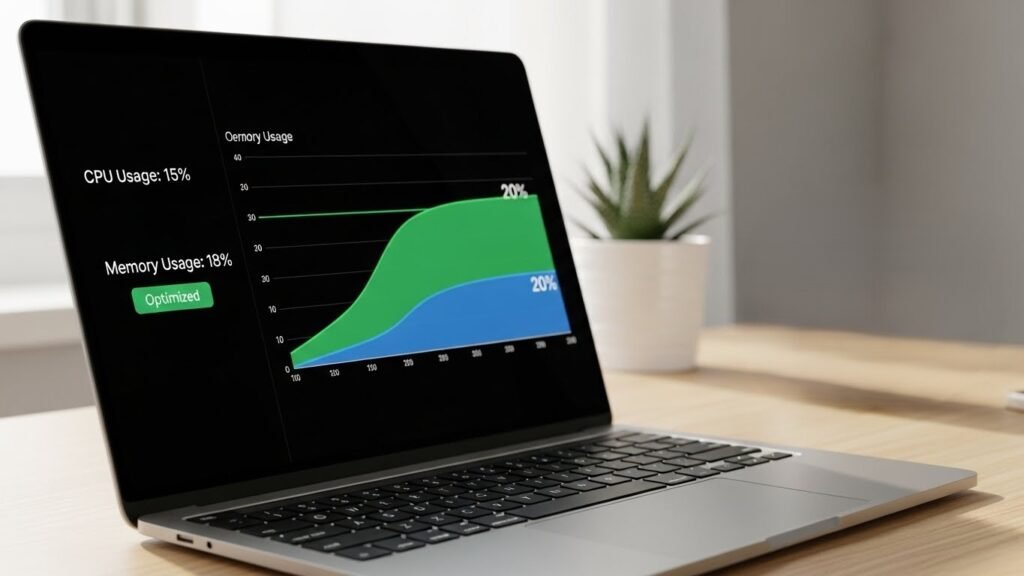
When there is no animation happening in the background, the system spends less time drawing effects and memory use. This frees up memory and processing power, helping apps and menus respond faster.
Older PCs Benefit the Most
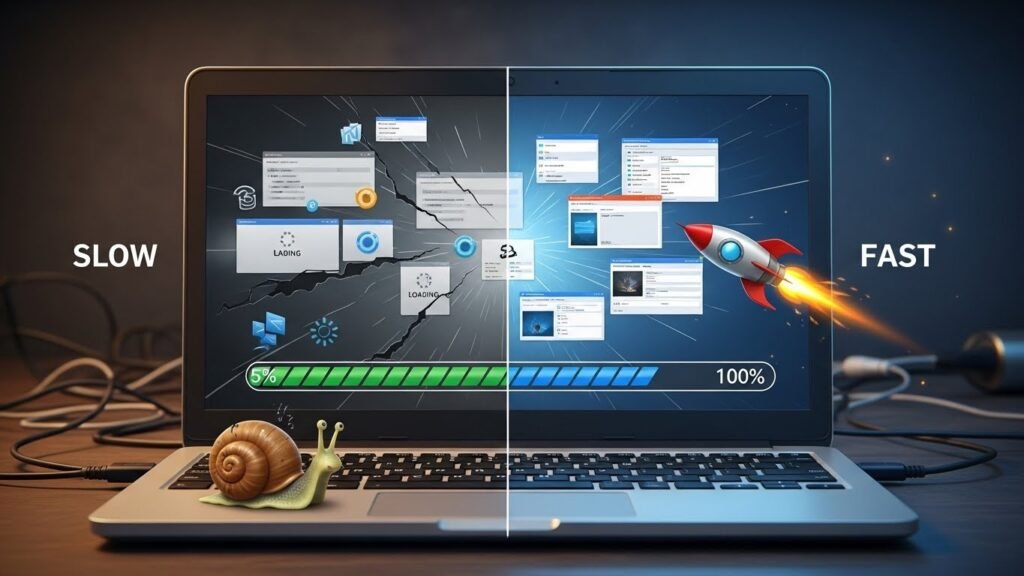
PCs with less RAM or older processors feel the biggest difference. Even newer systems can feel snappier, especially when multitasking or opening many windows.
How to Find the Setting
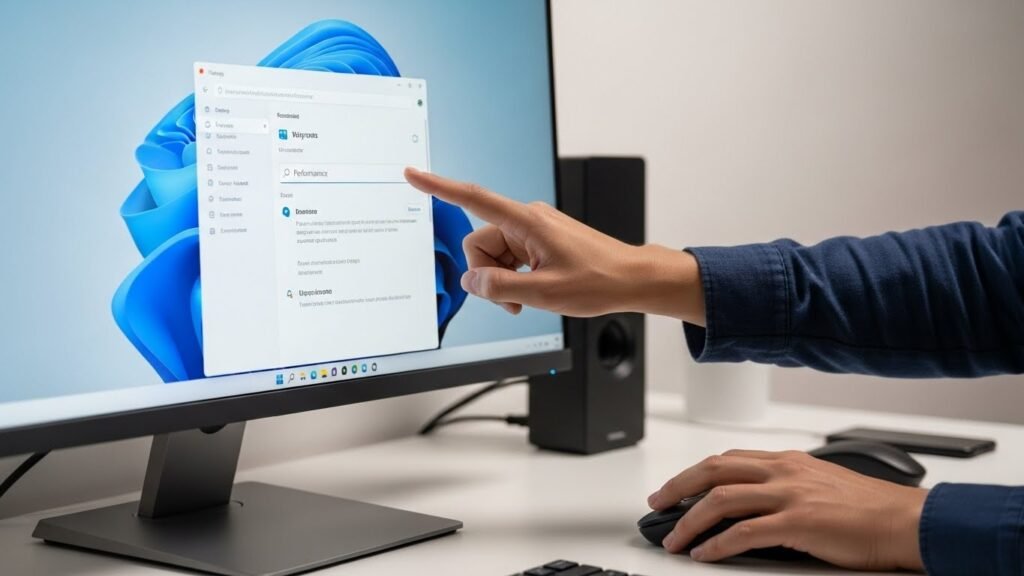
Open Settings, search for “Performance”, then choose Adjust the appearance and performance of Windows. This opens a hidden menu most users never explore.
Adjust for Best Performance
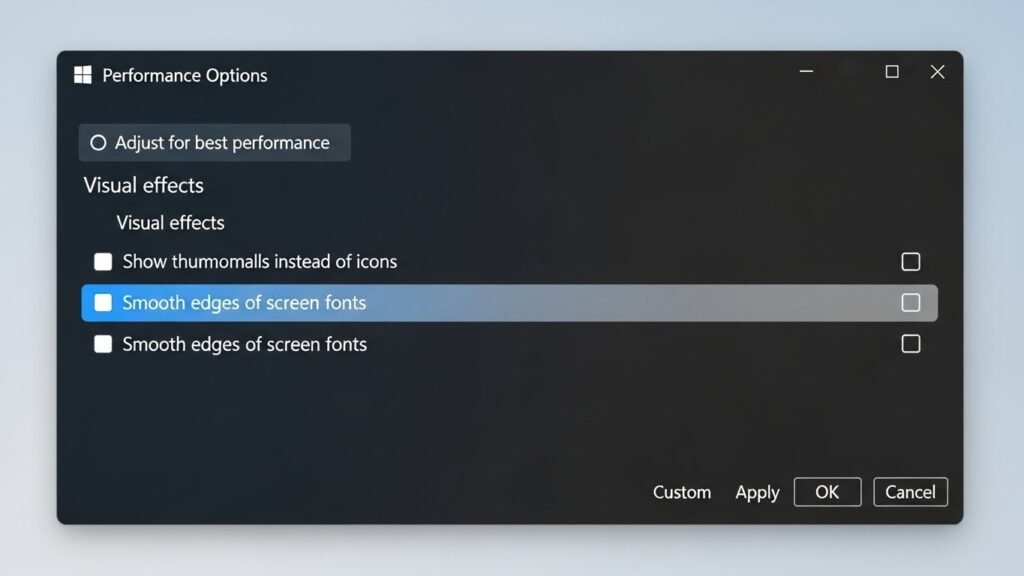
Selecting this option turns off all visual effects at once. Windows will look simpler, but actions like opening File Explorer or switching apps feel quicker.
Customize Instead of Turning Everything Off
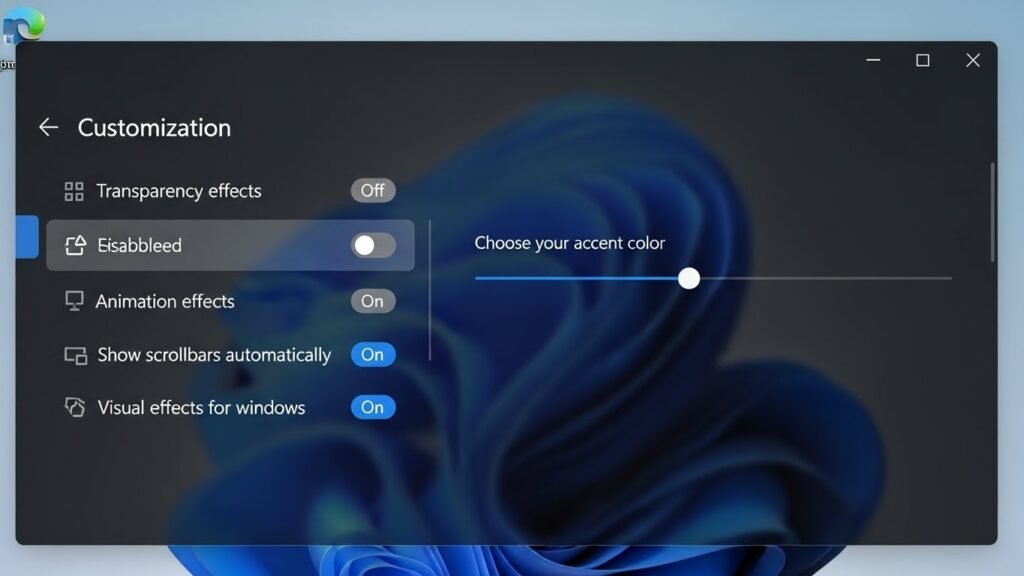
If you don’t want Windows to look plain, you can manually uncheck only animations and fade effects. This keeps the look clean while improving speed.
Changes Apply Instantly
You don’t need to restart your PC. Once you apply the setting, the speed difference is immediate. Menus open faster, and delays feel reduced.
This Doesn’t Harm Your PC
Disabling visual effects doesn’t damage Windows or apps. It only removes extra polish. You can turn everything back on anytime if you don’t like the look.
Won’t Take Too Long
No downloads, no tools, no risk. This single setting change takes less than two minutes and often gives one of the most noticeable performance improvements.
