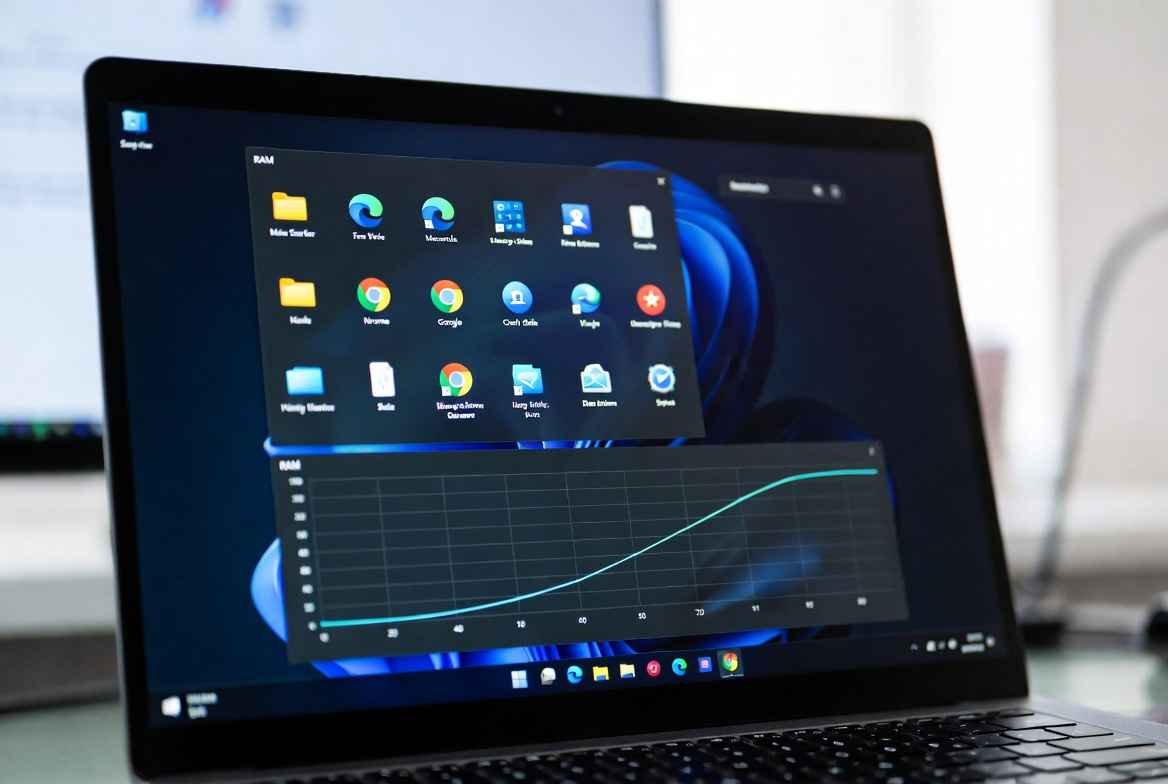
Windows 11 looks really modern. It is very smooth but some of the settings on Windows 11 are running quietly in the background and they use up extra memory on the operating system. A lot of people do not even notice these settings on their windows version. There is one setting on Windows 11 that can slowly use up all the RAM on Windows 11 and make the whole PC feel really slow on laptops or older computer systems.
Background Apps Running

Indeed, windows 11 hosts background applications running which eats a lot of memories without our knowledge. If you see unusual apps running in the background, closing it may reduce memory usage and help running windows smoothly.
Why This Uses Extra RAM

You know that background apps keep updating, syncing data or sending notifications. While some of them also required internet connection to work effectively and this constant activity uses memory.
Related : When She Finally Realized Her Partner Was Sleeping With Someone Else
Setting Is Slowing Your PC
Gradually, your computer may feel slow after startup and you may see that apps may open with delay. Fans may run more often. These are signs that memory is being used by background processes you do not need.
Check Background App Usage
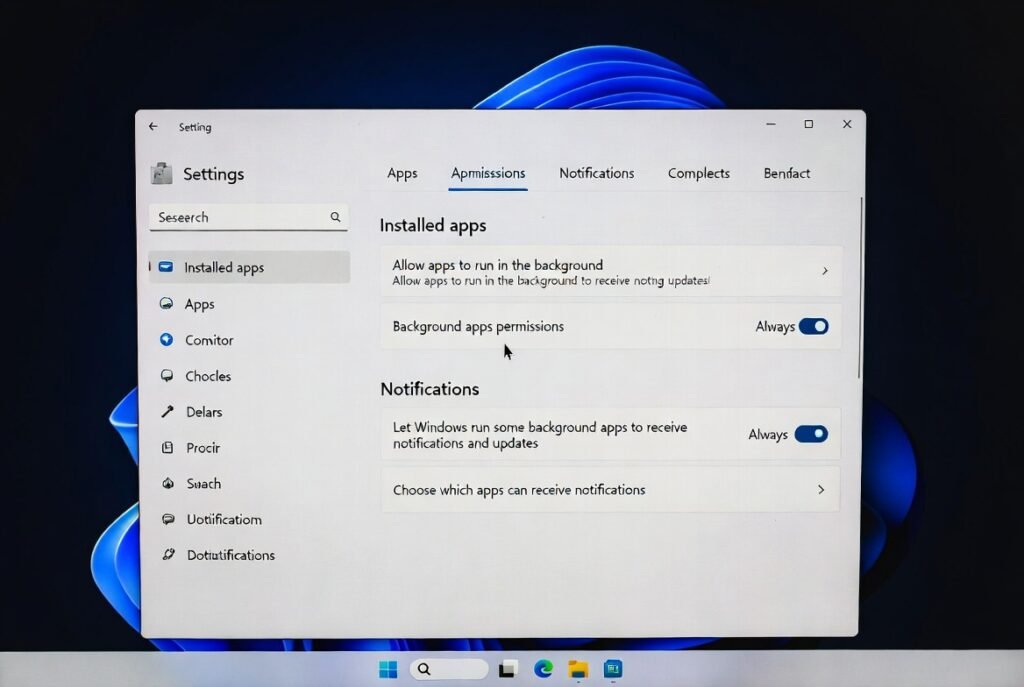
Open Settings, then go to Apps and Installed apps. Click on an app and look for Background app permissions. Many apps are set to Always without you realizing it.
How to Turn It Off Safely
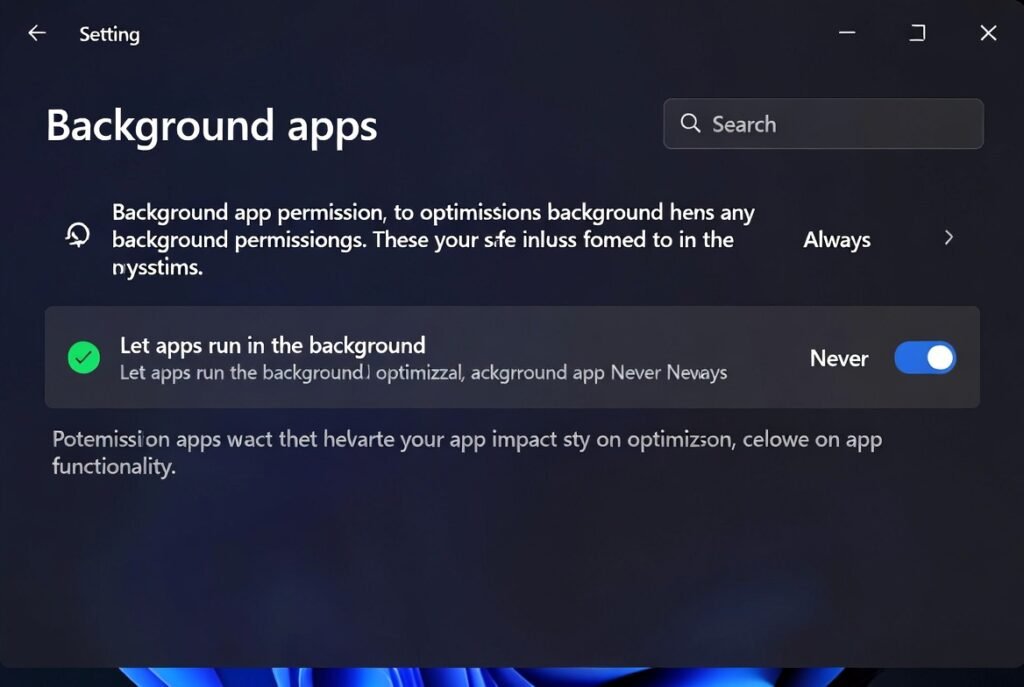
Change the background permission from Always to Never for apps you rarely use. And keep it on only for apps you truly need like security or messaging tools.
Related : When She Finally Realized Her Partner Was Sleeping With Someone Else
Which Apps Are Safe to Limit
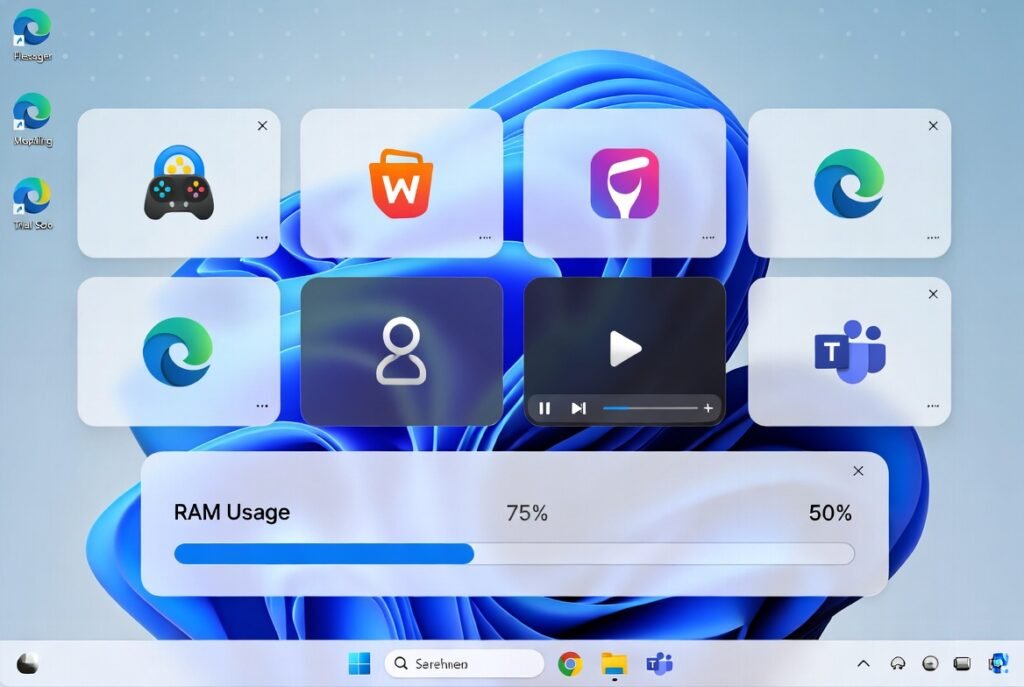
I think games, shopping apps, media players and trial software usually do not need background access. Limiting these can free RAM quickly and improve system response.
Using Older PCs
Older computers have low quantities of RAM and reduced processor speed which may absolutely affect applications to open with delay. Turning off unnecessary background apps can make Windows 11 feel faster without installing anything new.
Does Not Break Your Apps

By implying these settings won’t affect your computer and apps still work normally when you open them. They just stop running silently in the background. You stay in control without losing features.
Make It a Monthly Habit

New apps often reset background permissions. Checking this setting once a month helps keep RAM usage under control and keeps your PC feeling smooth.
Related : When She Finally Realized Her Partner Was Sleeping With Someone Else
