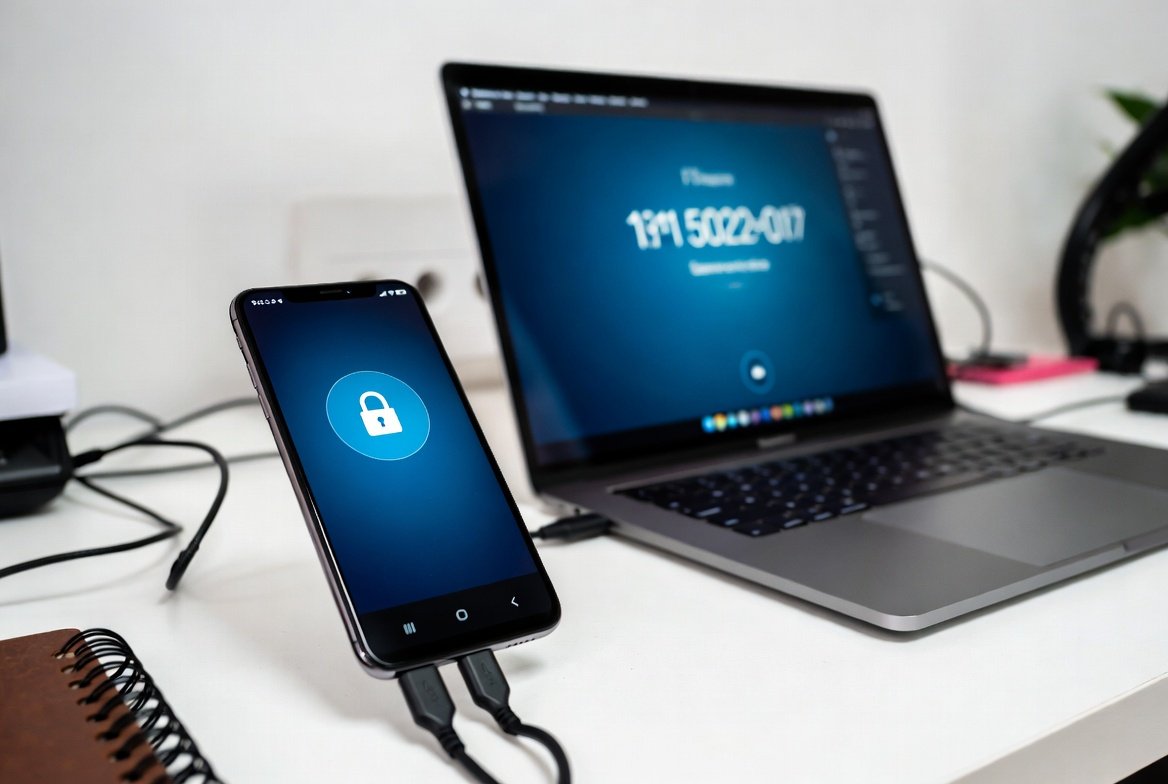
Not all places have reliable Wi-Fi, and public networks often can’t be trusted. A smartphone can come in quite handy at times like these by keeping your computer online without being noticed. USB tethering lets you share the mobile data in your phone with other devices via a charging cable. It’s more stable for speed, protects your privacy more, and is easier on battery life than wireless sharing. It’s particularly handy while travelling, for power outages meeting work deadlines. You can have it up and running in a few taps without any real expertise required. And when turned on, your computer will pair its data line to your phone like an Ethernet network.
Cable Connection
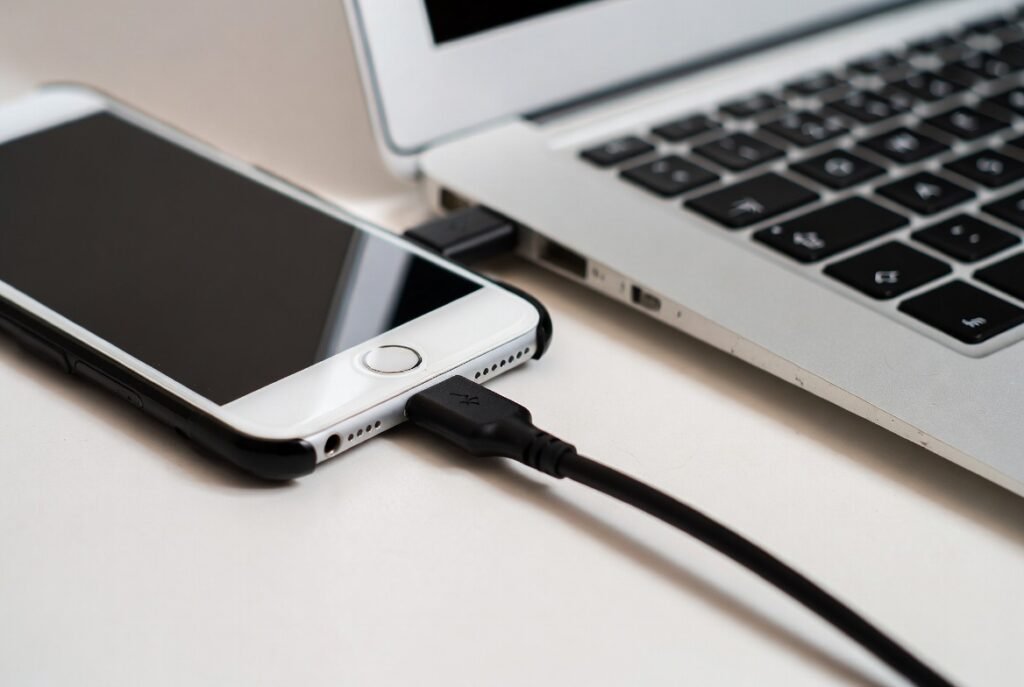
Plug in your smartphone to the computer using the original charging cable. A stable power supply of a secure cable reduces data loss and prevents accidental disconnections during work or when transferring files.
Unlock Device
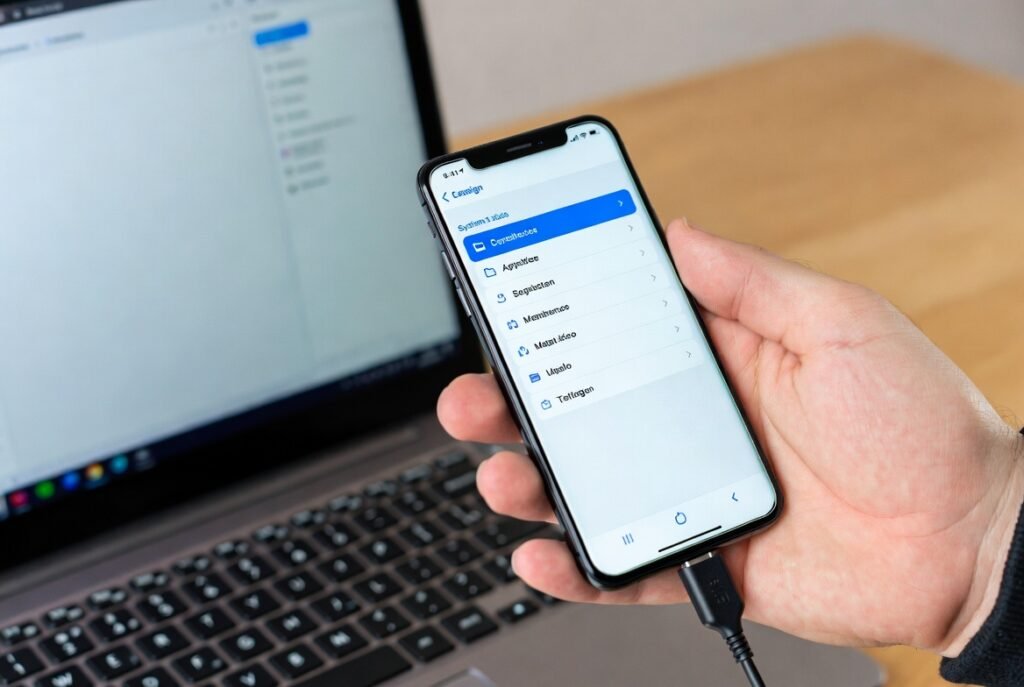
Unlock your phone screen before enabling tethering. This allows the device to recognise the computer properly and display sharing options that remain hidden when the screen stays locked.
Enable Mobile Data
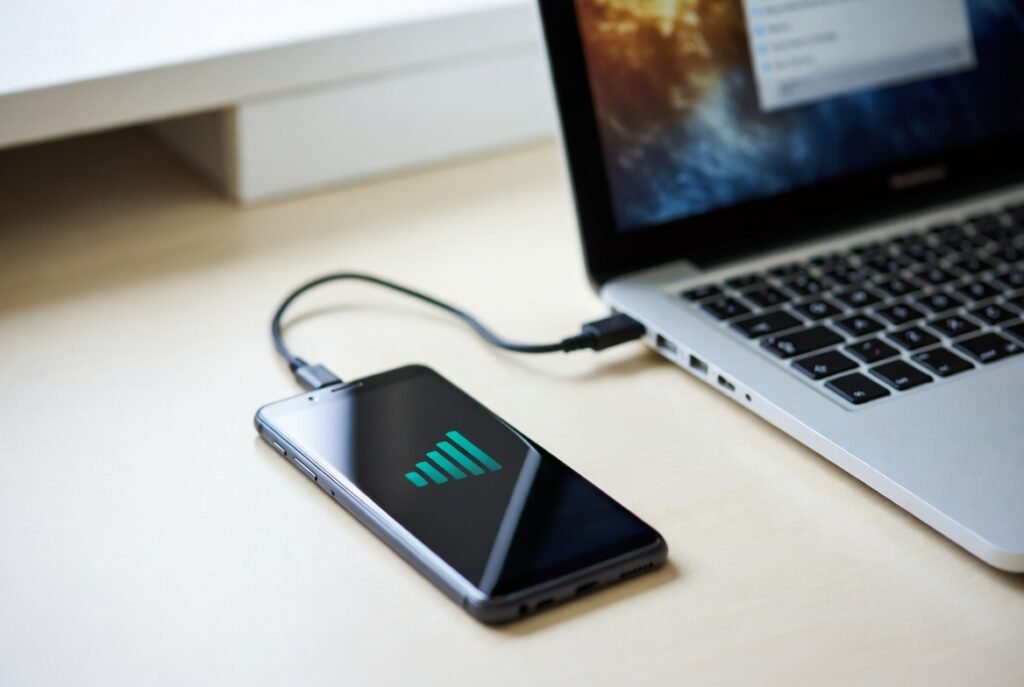
Then, you should turn on mobile data in your phone. The PC still gets internet so long as it is plugged in via USB tethering, and not connecting to wireless.
Open Tethering Menu
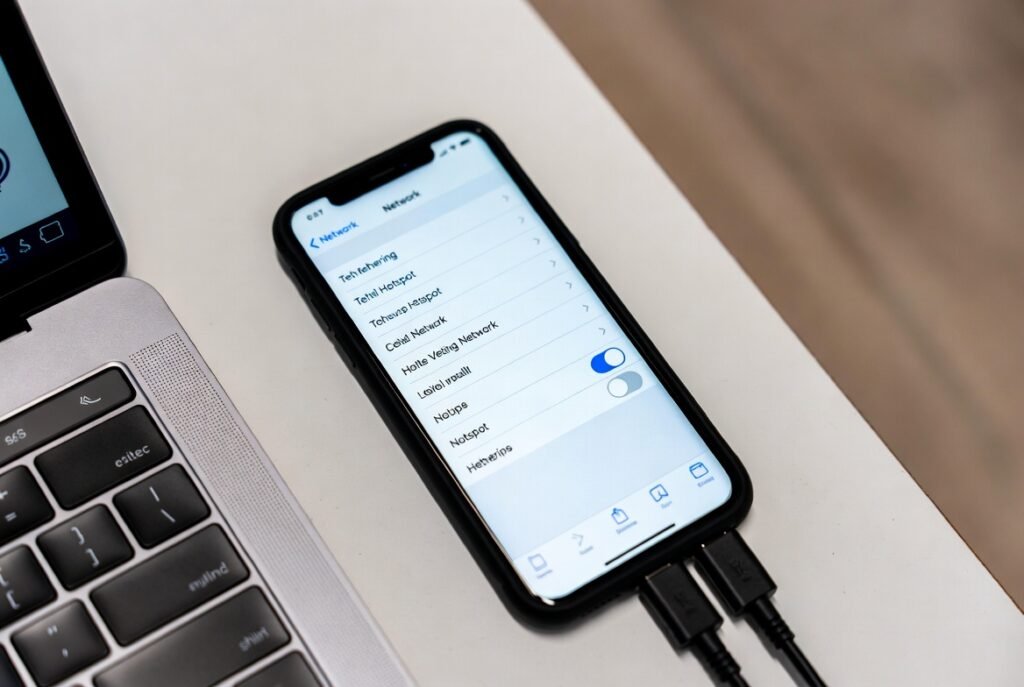
Navigate to your phone’s network settings and access the tethering or hotspot menu. This is where you control your device’s internet sharing.
Activate USB Tethering
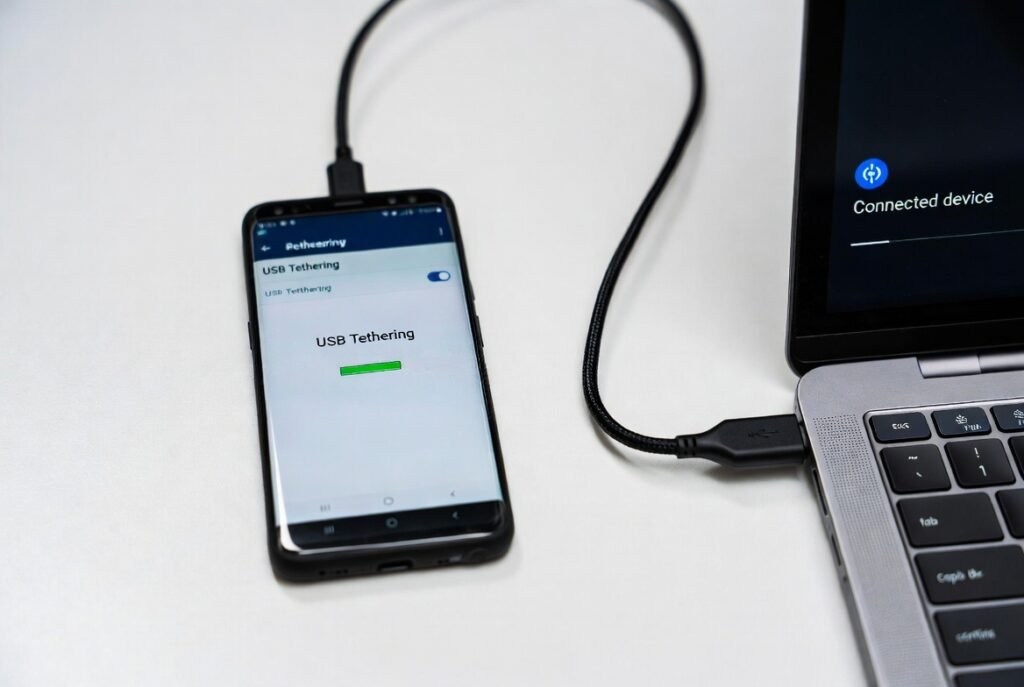
Turn on the USB tethering option. Once enabled, your phone begins transferring internet signals to the connected computer through the cable.
Wait for Detection
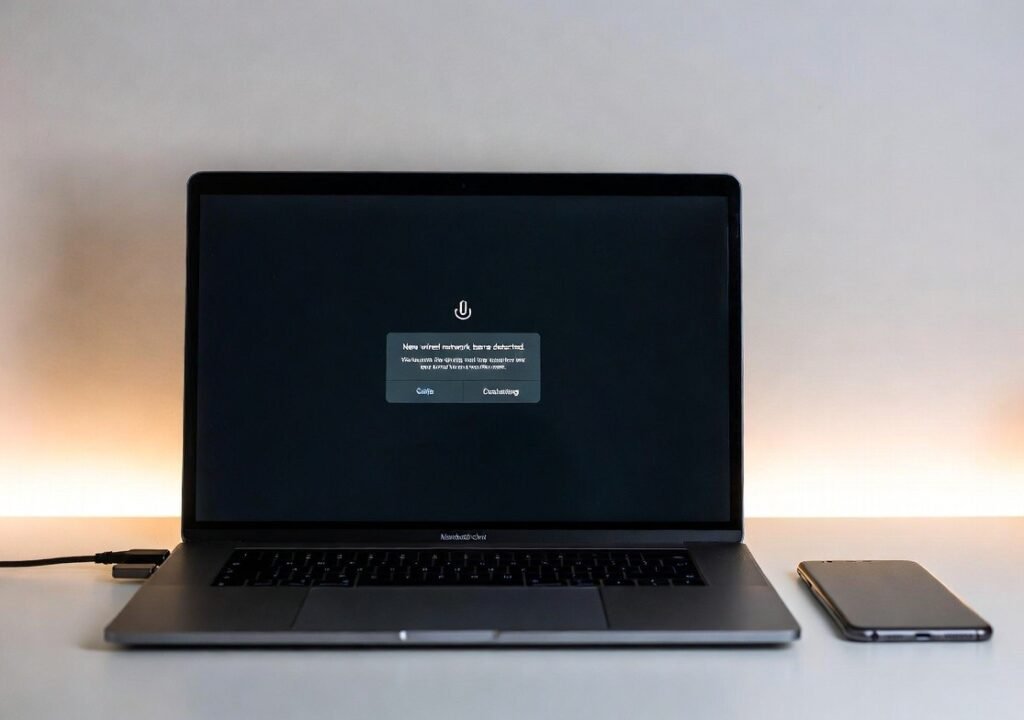
Wait a few moments for the computer to identify and detect the connection. The appropriate network drivers are usually configured automatically by most systems, without the need for special configuration.
Confirm Network Status
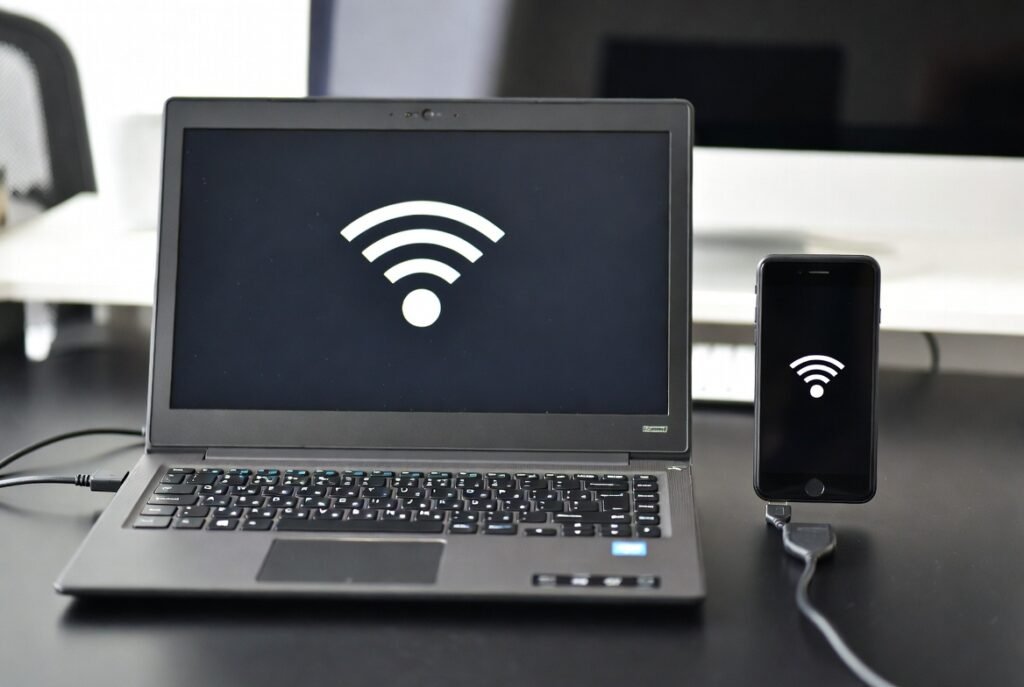
Check the computer’s network icon to confirm active connectivity. A wired network symbol indicates that USB tethering is working correctly.
Control Data Usage
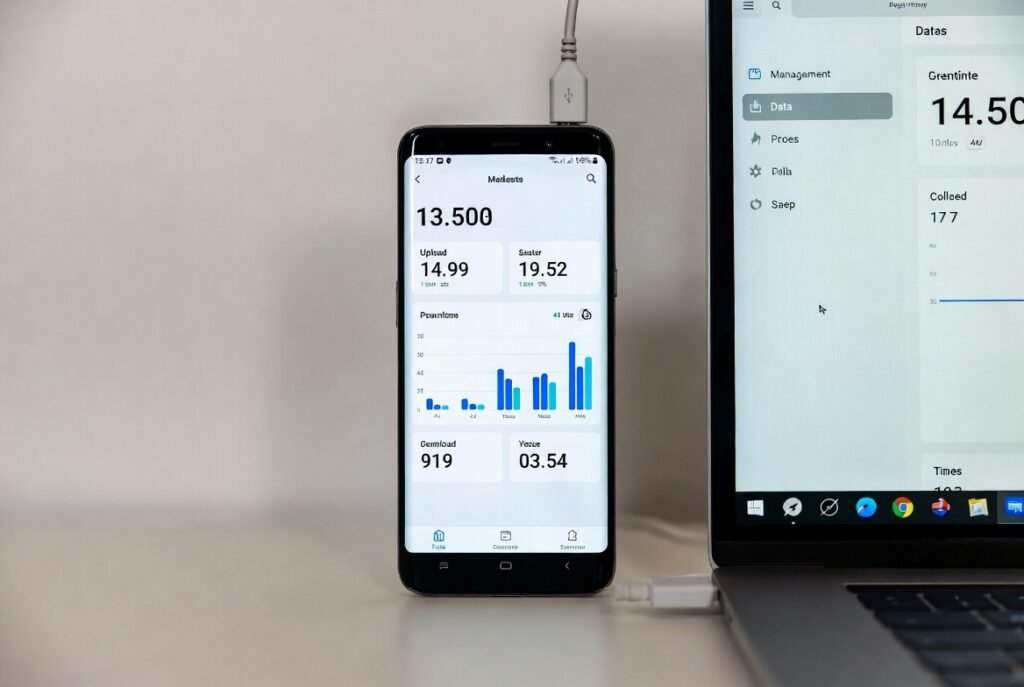
Monitor your mobile data consumption through your phone’s usage tracker. This helps avoid unexpected limits while working, browsing, or downloading files.
Battery Advantage
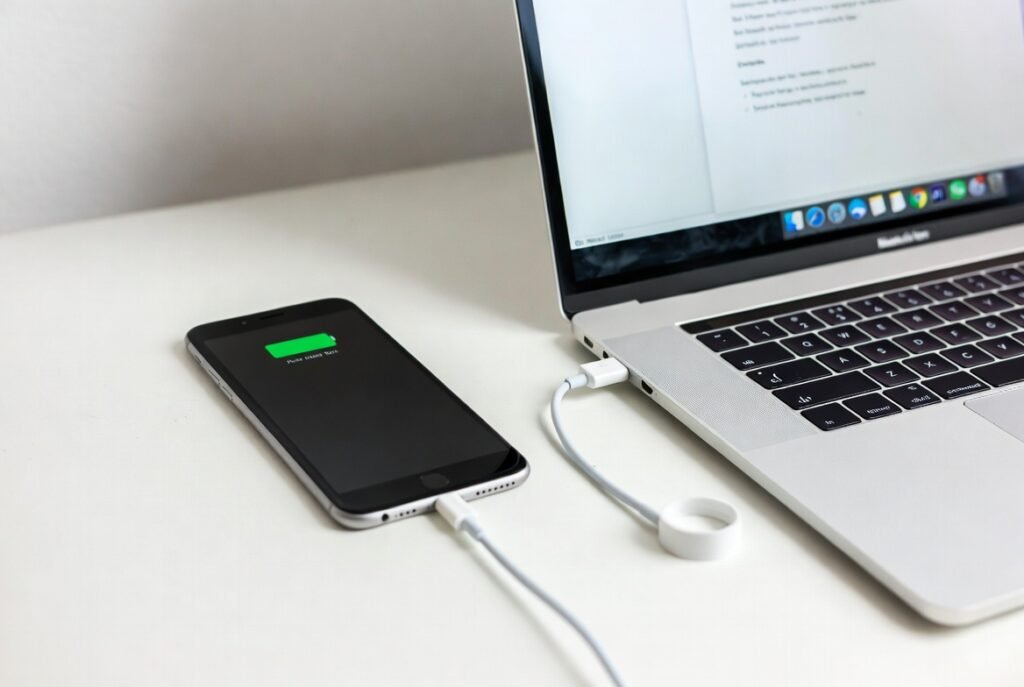
USB tethering charges your phone while in use. This reduces battery drain compared to wireless sharing, allowing longer uninterrupted work sessions.
Secure Browsing
A cable connection minimises public network exposure. This provides safer access for emails, documents, and online tools, especially in shared environments.
Disconnect Safely
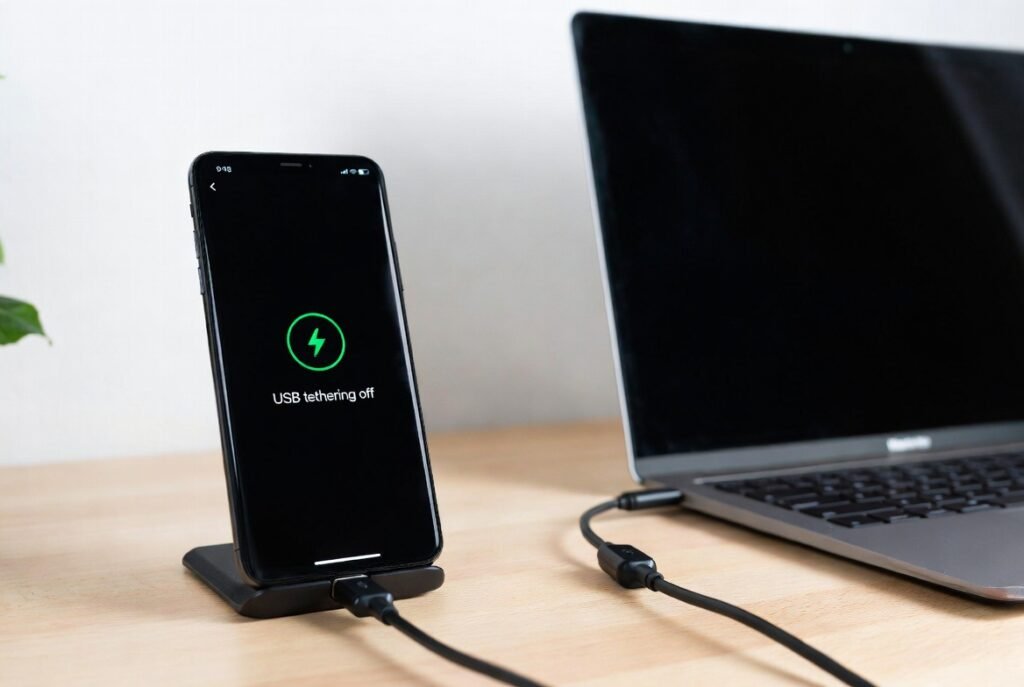
Disable USB tethering before you unplug the cable. This keeps network settings, etc., safe and also makes it so both devices go back to everything being gravy when done.
