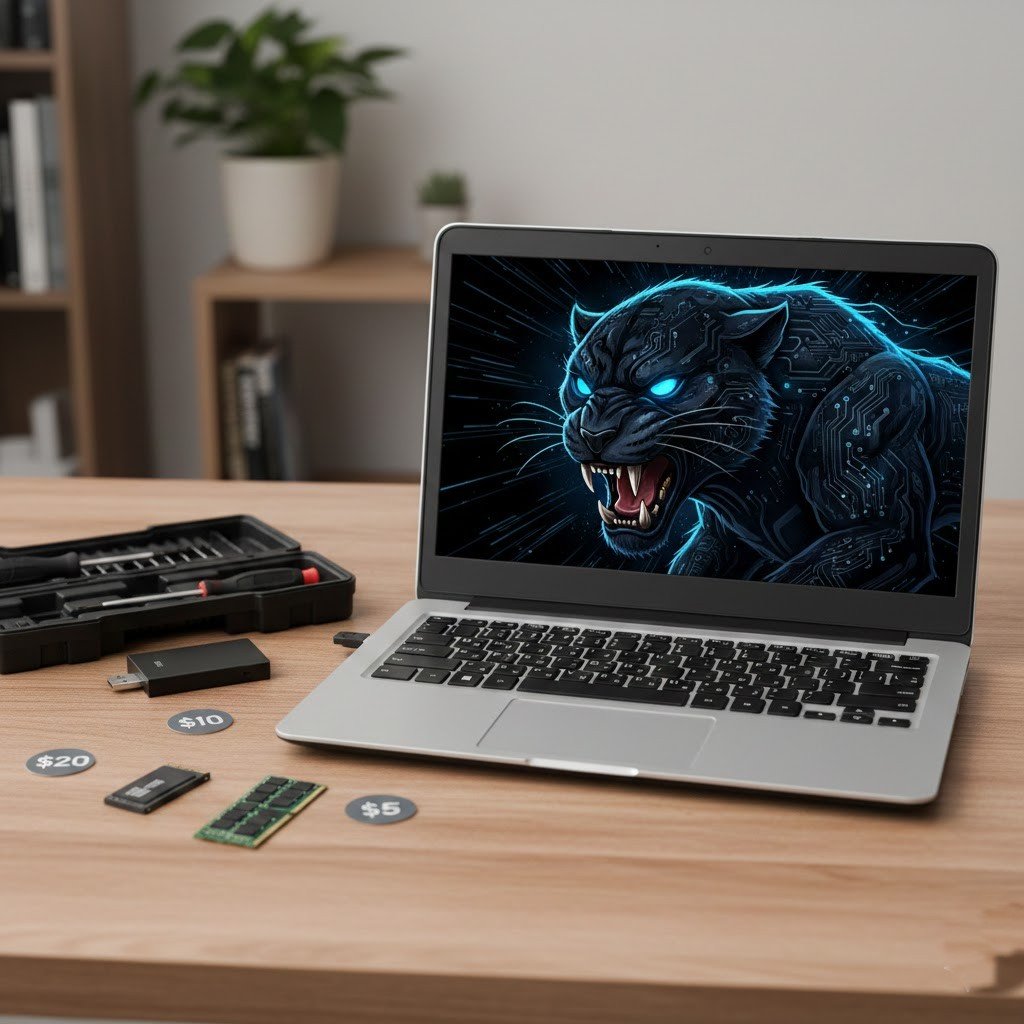
Many laptop users think their system runs slowly because it has become old, but many slowdowns come from small limitations that are easy to fix on a budget. Therefore, your old laptop does not always need replacement. With simple upgrades, you can solve performance issues wisely and make it more usable for daily tasks. Take a look at how your old laptop can still be a beast with these $30 upgrades.
Replace Drive With a Budget SSD

If you think that your system is performing slow due to a hard drive issue, switching to low-cost Solid State Drive (SSD) may improve startup time, file access, and overall performance. Many budget SSDs now fit close to the $30 range and offer solid everyday performance.
Add More RAM
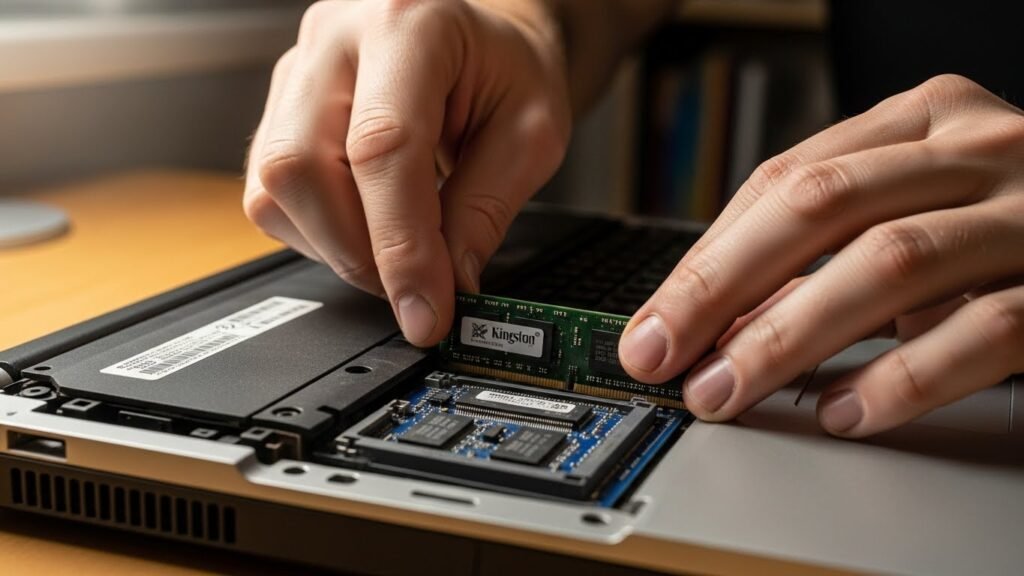
Due to low memory you may experience slow multitasking or app freezing. The effective way to solve this issue is by adding a small amount of RAM to help apps run more smoothly. Browsers, documents, and background tasks feel less heavy after this simple upgrade.
Replace Thermal Paste
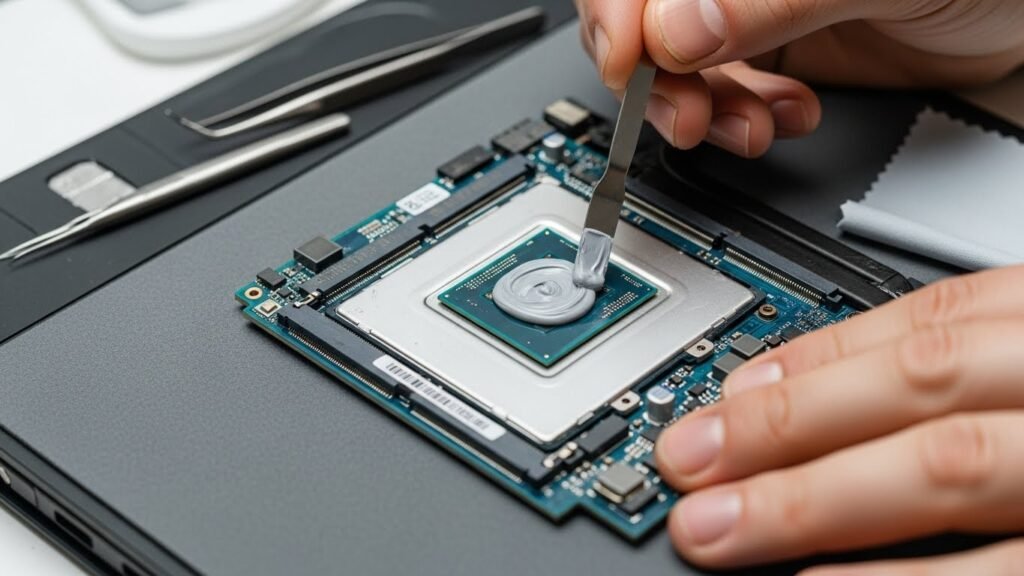
In technical terms, thermal paste is a conductive substance that fills microscopic air gaps. In simple terms, it is used to eliminate air gaps and prevent overheating issues. Lower heat helps the laptop stay responsive and reduces sudden slowdowns during use.
Deep Clean the Cooling Fan
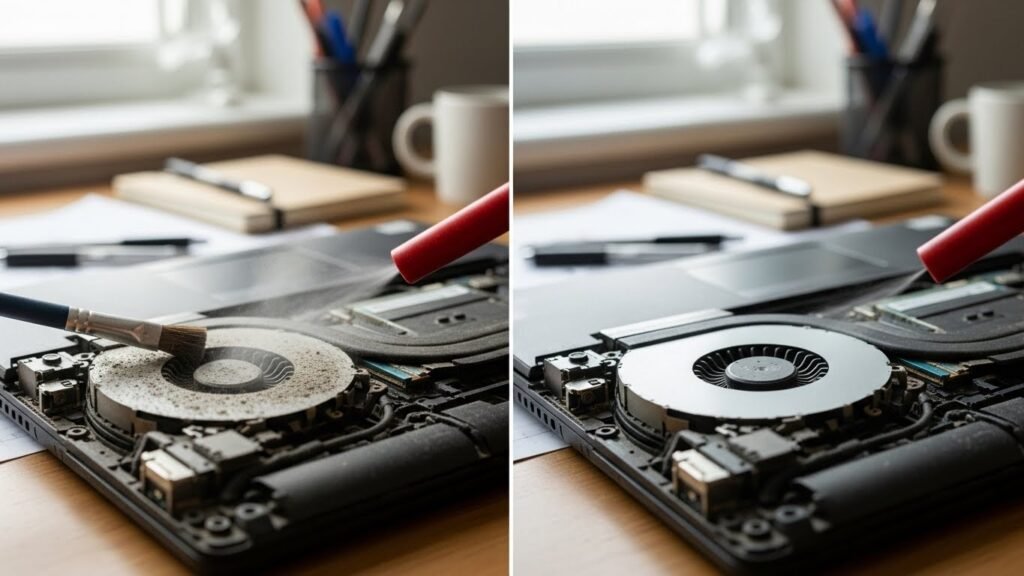
Over time, dust accumulates inside the cooling fan and vents of the laptop which may reduce performance. Cleaning the fan and vents improves cooling and airflow that supports steady performance and reduces noise during everyday tasks.
Upgrade the Wi-Fi Card
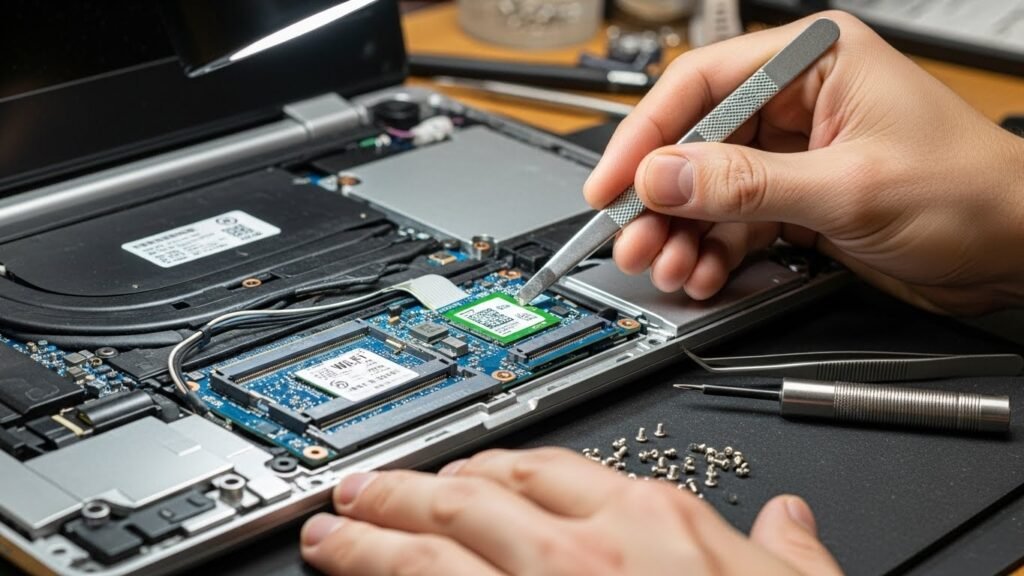
Older Wi-Fi cards struggle with modern networks. A basic replacement improves connection stability and speed. Browsing, streaming, and downloads feel smoother without constant drops.
Switch to a Lightweight OS
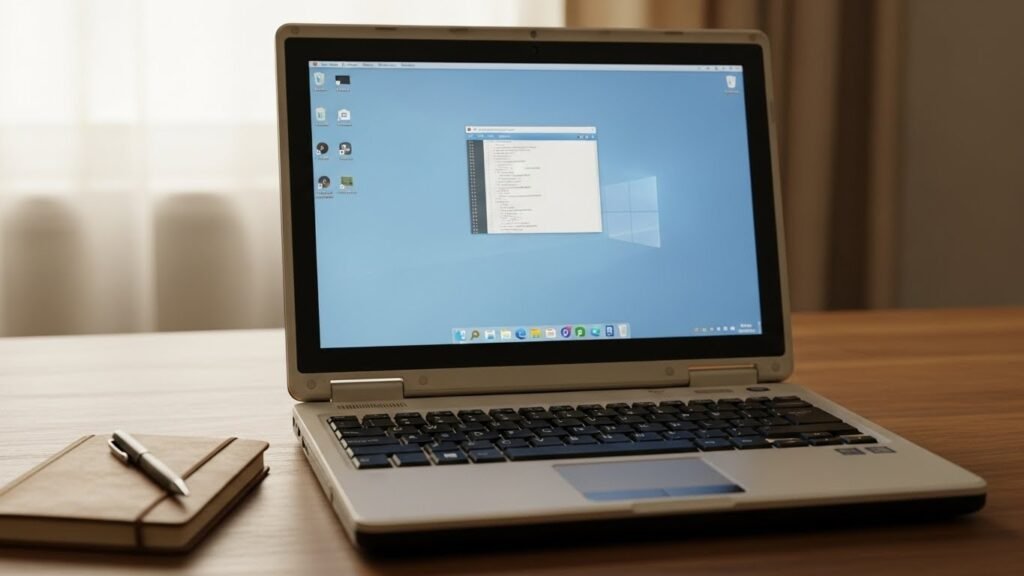
Heavy background features slow older systems. Adjusting settings or using a lighter system version reduces load. This makes daily tasks feel faster without changing hardware.
Replace the Battery

Old batteries drain quickly and affect performance. A budget replacement improves mobility and reduces sudden shutdowns. This helps the laptop feel reliable again during work or travel.
Use an External Cooling Pad
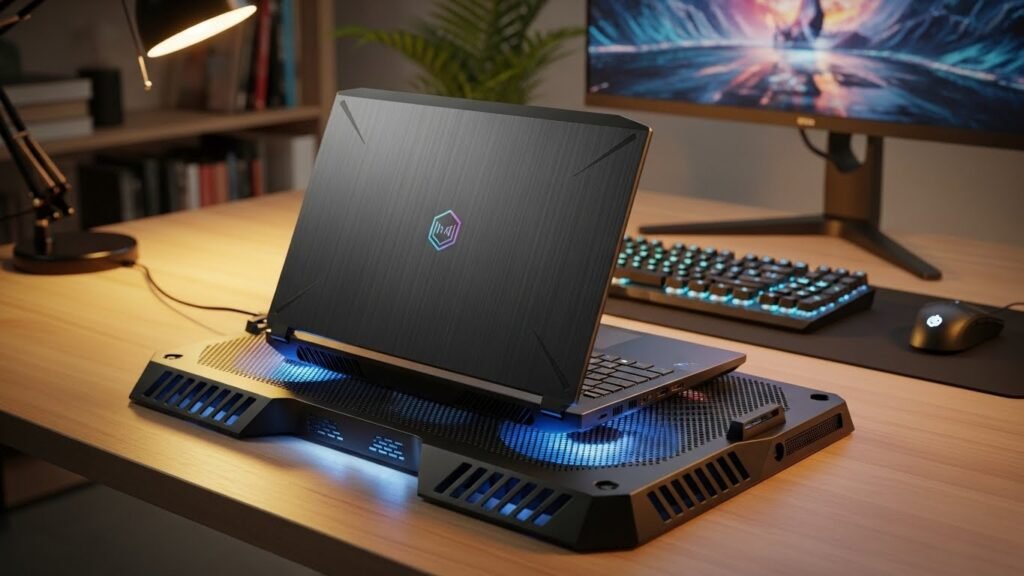
Cooling pads help manage heat from the outside. They support airflow under the laptop and reduce heat buildup. This helps maintain steady performance during longer sessions.
Better Keyboard or Mouse
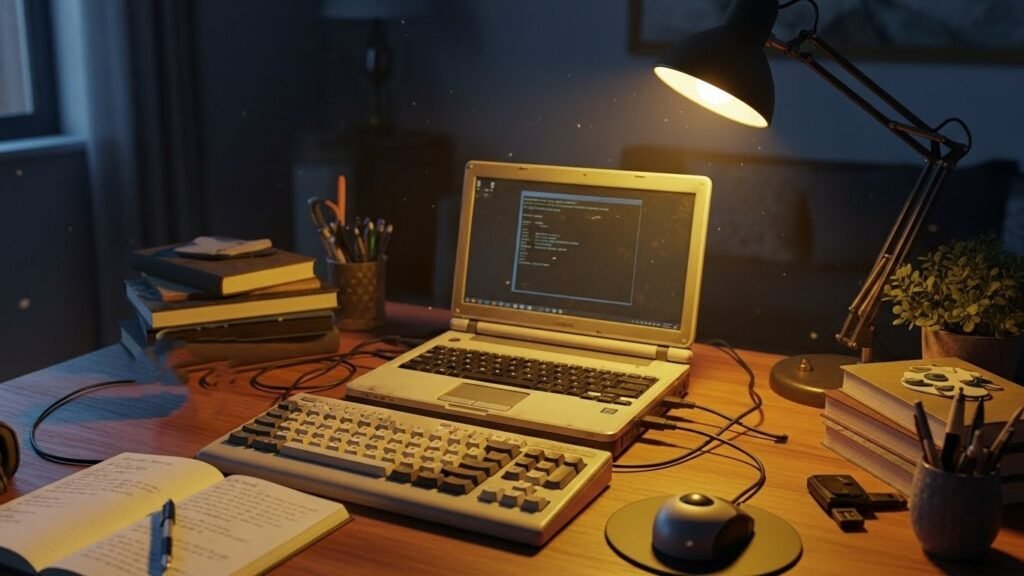
External input devices don’t boost speed, but they improve comfort and efficiency. Typing and navigation feel smoother, making the laptop easier to use for long periods.
Optimize Background Apps
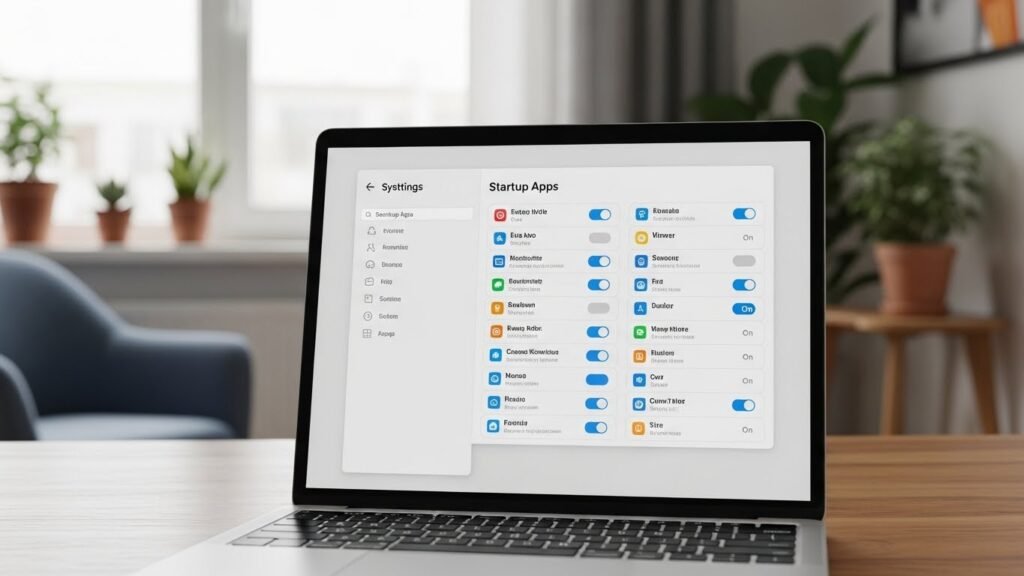
Many apps start automatically which may consume high memory without your knowledge and make performance down. Turning off unnecessary startup items reduces load. This simple change helps the laptop feel quicker right after turning it on.
